Quick answer: Odoo AI agents are assistants built into Odoo that understand plain-language requests and act inside your database. In Odoo 20 they can create and update records, run automations you describe in your own words, and be called by automated and scheduled actions. Each agent combines a system prompt, skills (instructions plus tools) and sources. All AI features use IAP credits. Below, based only on Odoo's release notes and documentation, we explain how they work and where to start.
What are Odoo AI agents?
Odoo's documentation describes an AI agent as a virtual assistant that understands natural language, performs tasks and helps users by working with Odoo tools. Every agent has a defined purpose, a prompt, and a set of skills and tools that guide what it does.
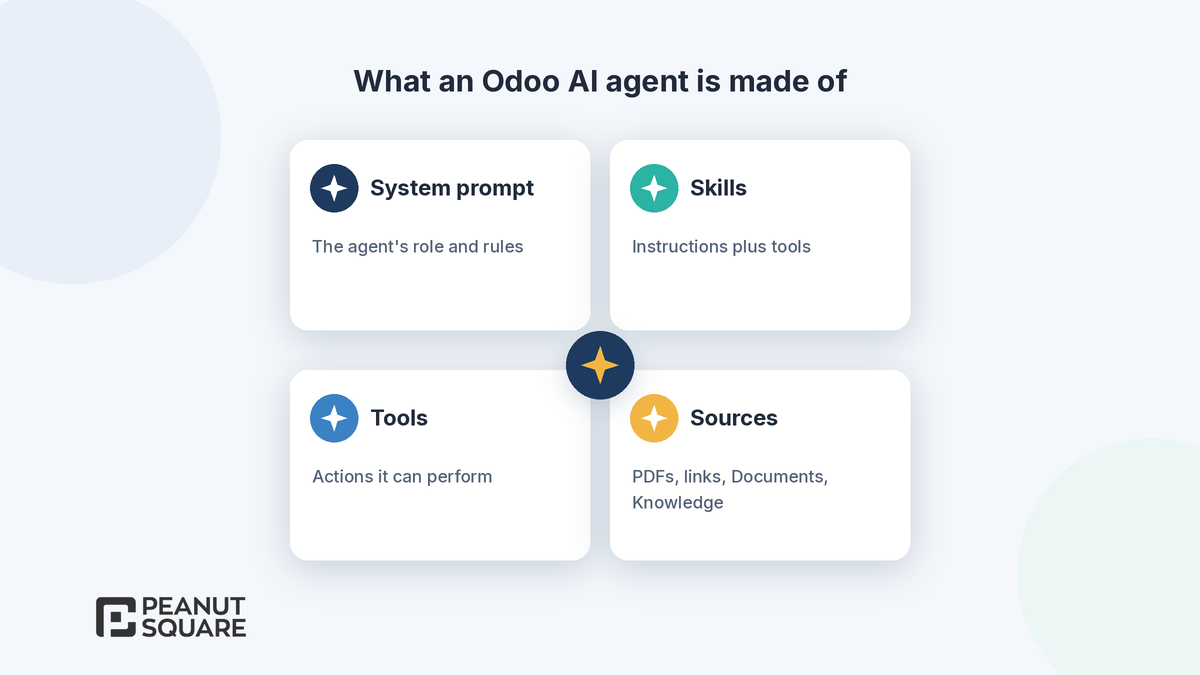
System prompt: the agent's overall role, purpose and behaviour, like a mission statement that applies to every conversation.
Skills: instructions and tools that define what the agent can do in the database. Odoo notes that an agent with no skills can only give information. It cannot complete tasks or change data.
Tools: the functions an agent can actually perform, such as creating a lead or opening a view. Which tools are available depends on the apps you have installed.
Sources: PDFs, web links, files from the Documents app and Knowledge articles. Odoo indexes them so the agent can look up relevant information.
You can use many AI features without it, but you need the AI app installed to create or customise agents.
What's new for AI agents in Odoo 20?
The AI section of the Odoo 20 release notes (September 2026) lists these changes:
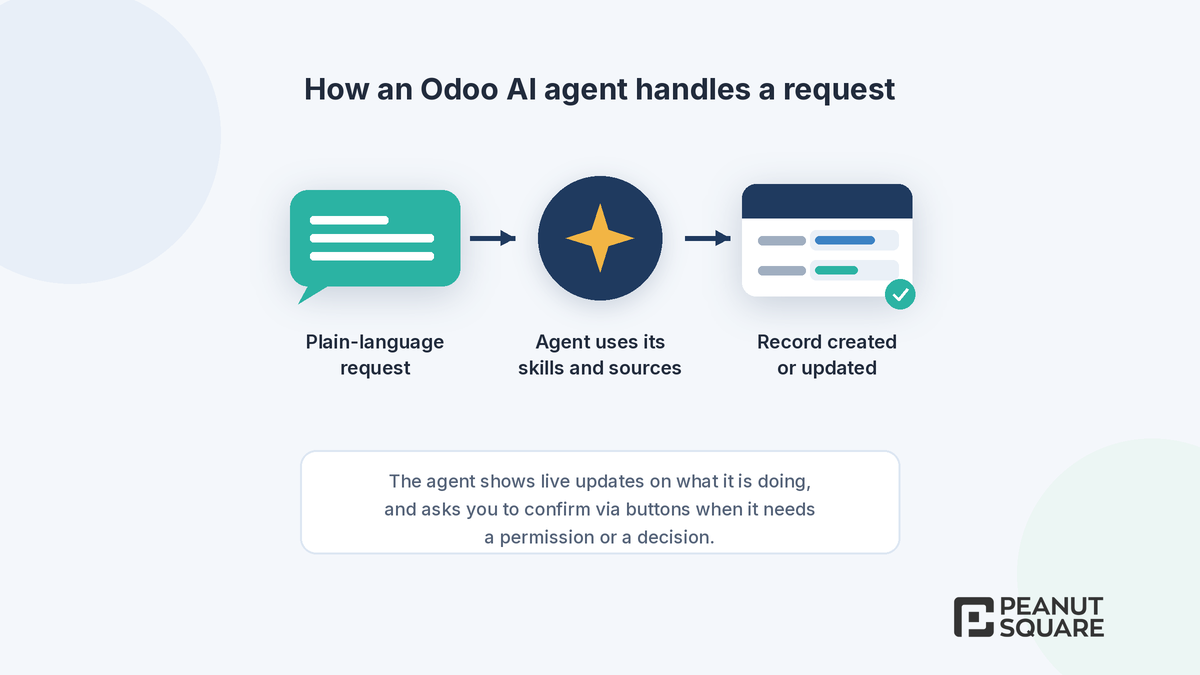
Create and update records: ask an agent to create anything for you, including from an uploaded file of instructions such as a PDF, or to update existing records.
Agentic automation: automated and scheduled actions can call agents. Automation chats show how an agent handled each case, so you can ask for changes based on the errors it hit. Agents can also update themselves to fit their use case better.
Files in the conversation: upload files or link documents in an agent chat, and ask questions about a file while you preview it.
Clearer feedback: agents show live updates on what they are doing instead of a generic "AI is thinking" message. You can answer their questions, permission requests and suggestions by clicking buttons.
Guardrails: if an agent reaches its maximum number of tool calls, it asks you to confirm before it carries on.
Skills: "Topics", the collections of instructions and tools that shape an agent's behaviour in a given context, are now called "skills".
Model-bound agents: when you ask an agent to work with a specific model, it offers to become that model's default agent.
Everyday usability: voice dictation, a + menu for adding options to a request, time-period filters (weeks, quarters and so on) when agents build views, image generation for websites and mailings, and conversations stored for up to 30 days after the last message.
Model choice: you pick an AI provider and Odoo automatically uses the best model for the task. Default prompts can now carry context and dynamic values.
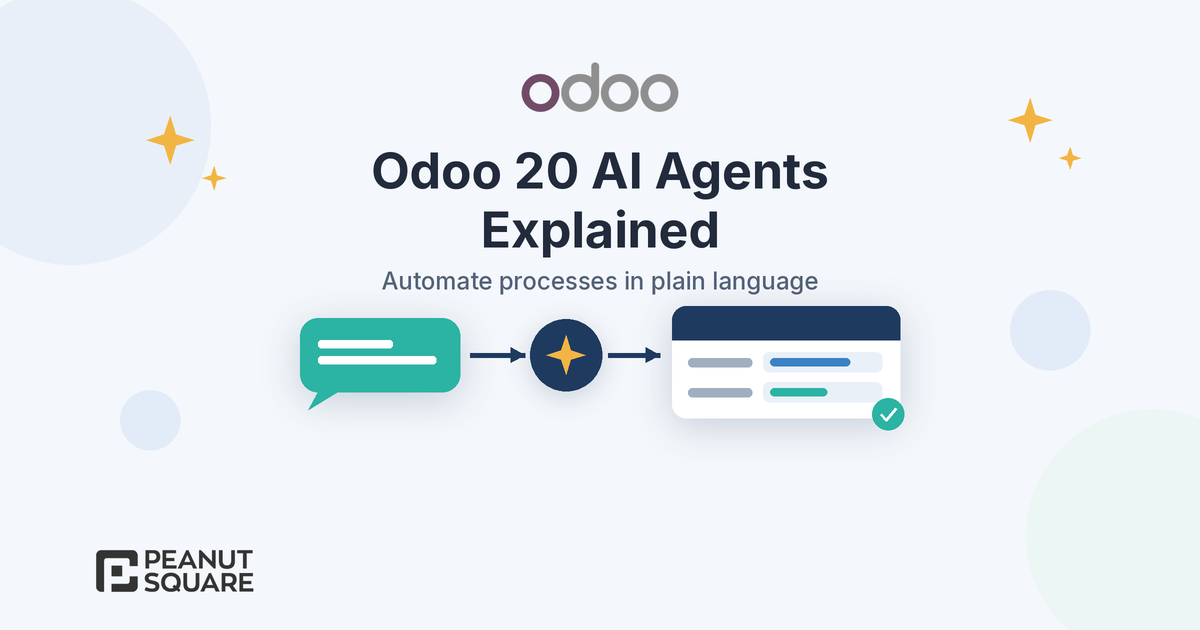
How do you automate a process in plain language?
In its "Meet Odoo 20" announcement, Odoo says you can automate a process just by telling your AI agent what to do in plain language. The agent explains exactly what it is about to do, and then the process goes live and runs on its own. Odoo's own examples include:
confirming a sales order as soon as the matching email arrives
assigning leads to the right salesperson
creating a project once a contract is signed
sending an alert when stock runs low
Underneath, this builds on Odoo's existing automation framework. Automated and scheduled actions can now call agents, so a rule or a schedule can trigger work that needs judgement instead of a fixed condition.
AI server actions: the manager and the worker
Odoo's documentation on AI server actions explains how responsibility is split:
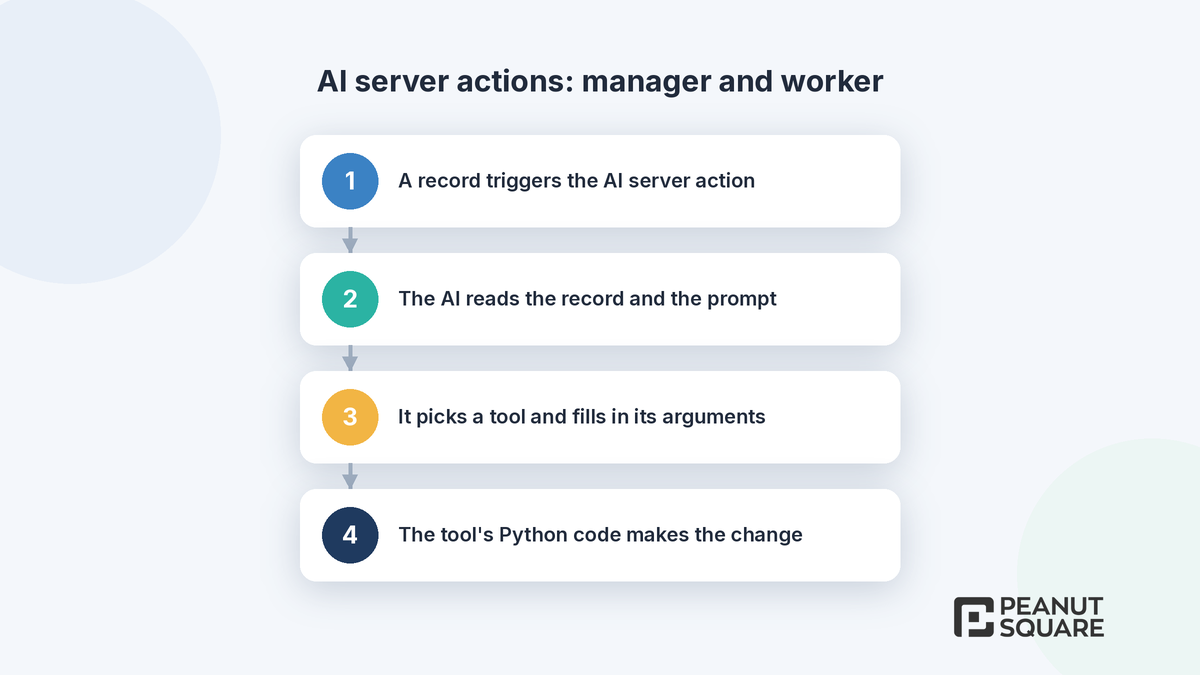
A record triggers the AI server action.
The AI reads the AI prompt, using the record as context.
It chooses one of the available tools and supplies the arguments that tool expects.
The tool, a standard server action with "Use in AI" enabled, runs its Python code and makes the change.
The AI server action only makes decisions. The documentation is clear that it does not enforce business rules, and that a tool runs unconditionally when called unless its own code prevents it. Put your business rules in the tool, not in the prompt. The AI also can only pass arguments that are declared in the tool's AI Schema on the Usage tab. Odoo's worked example is "Auto-sort documents in Inbox", where the AI decides whether to move, tag or rename a document and existing code carries out the action.
Skills, tools and sources in practice
Preconfigured skills
The AI app comes with these skills, according to Odoo's documentation:
View Builder: turns a question into the right Odoo view, including grouping by day, month or year.
Information retrieval: tools to read information about models.
Create Records and Update Records
Generate Images
Web Search: lets the agent look things up on the internet in real time.
Website Builder: tools for editing website pages.
Create Leads: automated lead creation, available when CRM is installed.
Sources and the "Restrict to Sources" option
Sources are indexed, and you switch each one on once its status changes from Processing to Indexed. If you enable Restrict to Sources, the agent answers only from your active sources, which is useful for a customer-facing support agent built on Knowledge articles. If a source changes later, reprocess it so the agent uses the latest version. Files you upload during a chat only count for that conversation unless you add them to the agent.
Response styles
When you create an agent you choose a response style: Standard, Nuanced, Snappy & Creative, or Slow & Rigorous. Then you use the Test button to try the agent before you roll it out.
Can external AI tools work with Odoo?
Yes. Odoo 20 can act as an MCP (Model Context Protocol) server. Odoo's MCP documentation covers the setup:
Create an API key with the MCP scope under My Preferences > Security, and choose when it expires.
Point your MCP-compatible client at your database URL followed by
/mcp.By default only a few tools are exposed: Get Fields, Get Models, MCP Retrieve initial context, Search and Read group. Any other tool has to be exposed deliberately with the "Available in MCP" checkbox.
The "Readonly Tool" checkbox only tells the client that a tool is safe to run without approval. It does not hide the tool.
Odoo's announcement says an external tool connected this way can securely read and write your data with all your access rights intact.
What do Odoo AI agents cost?
The Odoo 20 release notes state that all AI features now need credits, which you buy through IAP (in-app purchase). Odoo's IAP documentation adds that each service uses its own prepaid credits, and that Enterprise users with a valid subscription get free credits to test IAP features. Check current credit prices in your database or with Odoo before you budget. Prices can change, so we don't quote them here.
Access rights and safety: a practical checklist
These are our recommendations, based on how Odoo documents the feature:
Start with an information-only agent (no skills), then add Create Records or Update Records once you trust its answers.
Use Restrict to Sources for agents that answer customers.
Enforce validation and approval rules inside each tool's code, because tools run whenever the AI calls them.
Expose MCP tools one at a time and give API keys an expiry date.
Review automation chats every week at first, and adjust prompts based on what you see.
Retest custom modules on Odoo 20, where access rights now use a domain on the access right instead of record rules.
Practical use cases to try first
Sales: confirm an order when the matching email arrives, or route new leads to the right salesperson. Both are Odoo's own examples.
Projects: create a project once a contract is signed.
Inventory and purchase: get alerted when stock runs low, or ask the agent which vendors are worth renegotiating with, based on your purchase history.
Documents: sort incoming files automatically, following the "Auto-sort documents in Inbox" pattern.
Accounting: ask the Accounting AI agent about receivables or cash flow. Odoo says the answers come from your own reports.
Support: build an agent on Knowledge articles with Restrict to Sources switched on.
How to get started
Pick one repetitive process with a clear owner and a clear "done" state.
Install the AI app and create an agent with a focused system prompt.
Assign only the skills that process needs, and add sources if the agent needs reference material.
Try it with the Test button on a copy of your database first.
Set an IAP credit budget, go live, and review the automation chats.
For the wider picture of the release, see our guide to Odoo 20 new features.
How Peanut Square can help
Peanut Square is an Odoo Learning Partner based in Ahmedabad, Gujarat, founded in 2017. We have developed 90 Odoo modules and delivered 100+ projects, and our team includes an Odoo-certified consultant. Our Odoo clients include Renite Vitrified (https://renitevitrified.com/), Woodleaf and Madhav Solar. We can help you pick the right first process for an AI agent, write tools with proper business rules, and fit agents into your Odoo ERP setup.
Talk to us about Odoo implementation: https://www.peanutsquare.com/en/odoo-implementation
About the author: Nishant Patel, CTO, Peanut Square
Nishant leads technology at Peanut Square, an Odoo Learning Partner founded in 2017 and based in Ahmedabad, Gujarat. The team has developed 90 Odoo modules, delivered 100+ projects and includes an Odoo-certified consultant.
Sources
Odoo 20 release notes, AI section (September 2026): https://www.odoo.com/odoo-20-release-notes
Meet Odoo 20 (Odoo blog, 24 Sep 2026): https://www.odoo.com/blog/odoo-news-5/meet-odoo-20-2439
Odoo 20 documentation, AI agents: https://www.odoo.com/documentation/20.0/applications/productivity/ai/agents.html
Odoo 20 documentation, AI server actions: https://www.odoo.com/documentation/20.0/applications/productivity/ai/server-actions.html
Odoo 20 documentation, AI MCP server: https://www.odoo.com/documentation/20.0/applications/productivity/ai/mcp_server.html
Odoo 20 documentation, in-app purchases (IAP): https://www.odoo.com/documentation/20.0/applications/essentials/in_app_purchase.html
What can AI agents do in Odoo 20?
According to the Odoo 20 release notes, AI agents can create and update records (including from an uploaded instruction file such as a PDF), answer questions about files, build filtered views, generate images, and be called by automated and scheduled actions to run processes you describe in plain language.
Do Odoo AI agents cost extra?
Yes. The Odoo 20 release notes say all AI features now need credits bought through IAP. Odoo's IAP documentation adds that Enterprise users with a valid subscription get free credits to test IAP features.
What are skills in Odoo AI?
Skills are collections of instructions and tools that define what an agent can do in a given context. They were called topics before Odoo 20. An agent with no skills can only provide information.
Can external AI tools connect to Odoo?
Yes. Odoo 20 can act as an MCP (Model Context Protocol) server. You create an API key with the MCP scope, point an MCP-compatible client to your database URL followed by /mcp, and expose only the tools you want it to use.
Are Odoo AI agents safe to use with live data?
They work inside your Odoo database, and Odoo says external MCP connections keep your access rights intact. Tools called by AI server actions run whenever the AI calls them, so put business rules in the tool code, start with information-only agents and test on a copy first.