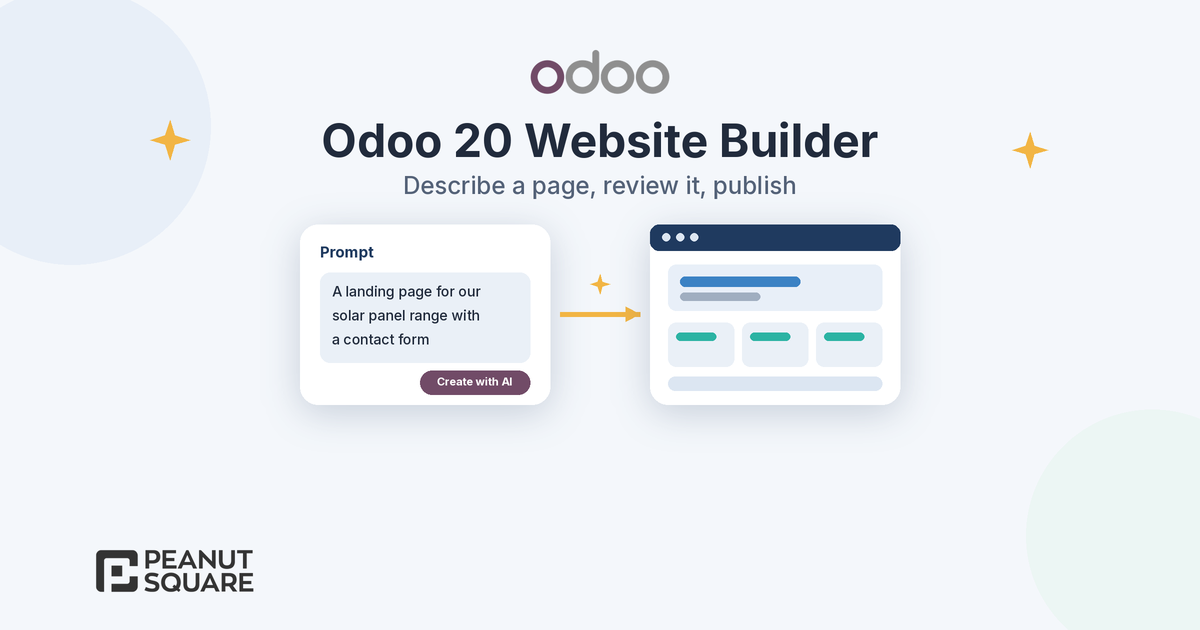
Quick answer: Yes. In the Odoo 20 website builder you can describe a page in plain words and Odoo generates it, and the AI Website Assistant can also create webpages, edit snippets, build interactive blocks, edit forms and menus, and help improve a page's SEO. It speeds up the first draft, but you should still review every generated page for accuracy, links, brand and SEO before you publish.
Odoo 20 was announced on 24 September 2026, and AI runs through the release. On the website side, Odoo's launch post says: "Describe the page you want, and Odoo builds it for you, instantly." This guide explains what the Odoo 20 website builder can do with a prompt, what else changed for SEO, translation and the blog, and how to keep a human review step in place. Every feature below comes from Odoo's official Odoo 20 release notes and 20.0 documentation.
How does the Odoo 20 website builder create pages from a prompt?
There are two ways to create a page with AI in the Odoo 20 website builder:
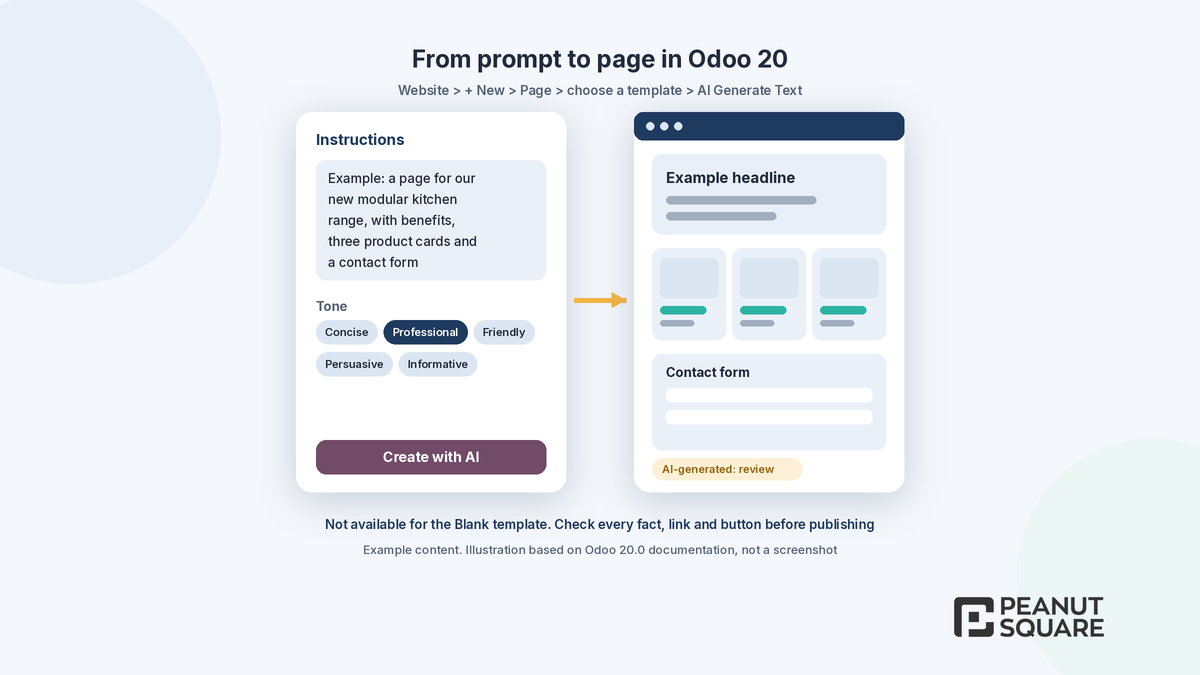
The AI webpage generator. According to the 20.0 Pages documentation, you open the New Page pop-up, choose a template, enable AI Generate Text, type your instructions, pick a tone (Concise, Professional, Friendly, Persuasive or Informative) and click Create with AI. The documentation notes that the AI app does not need to be installed for this, and that it is not available for the Blank template.
The AI Website Assistant. The release notes say you can ask the assistant to create new webpages and, while creating or editing a page, ask it to draw inspiration from other websites, use your database's records such as products or events, and add interactive elements such as counters, toggles, tabs or animations. It can also replicate a webpage from a URL.
Odoo's launch post adds that the same works for promotions, events and product pages. For a company website, that means a first draft of a landing page or campaign page in minutes instead of days.
AI-generated snippets and editing
Snippets are Odoo's building blocks: text and image blocks, galleries, forms, carousels and more. In Odoo 20, the release notes describe the AI Website Assistant as able to help you "vibe code" your website by choosing and editing snippets, adding images from Unsplash or generating them, and retrieving content on the web. Other assistant improvements listed in the release notes:
Create and edit webforms, and edit the website's menus.
Target a specific block with the Select Elements button before asking for a change.
Get more original designs instead of stock layouts.
An indicator in the website editor now shows which content was generated by AI.
Odoo's launch post goes further: if a building block is missing, the AI agent creates the snippet for you, including interactive ones. Odoo's AI agents documentation also lists a Website Builder skill, described as tools for editing Odoo website pages.
Odoo website SEO and translation in one click
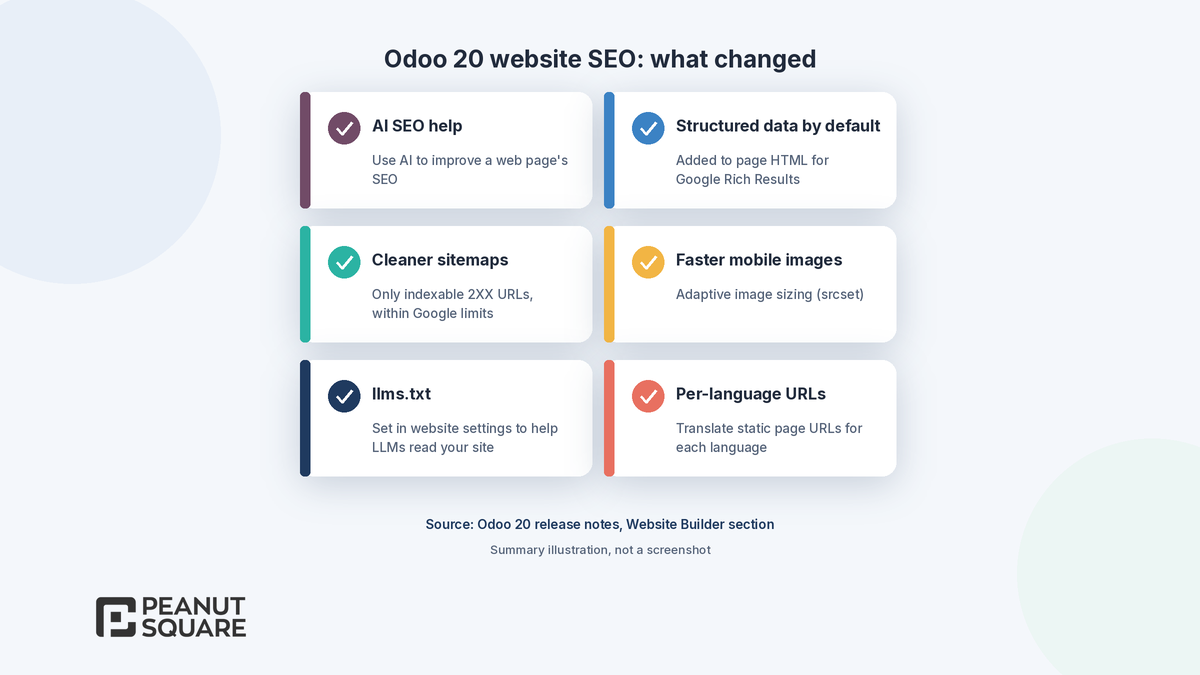
Odoo 20 adds several changes that matter for Odoo website SEO, according to the release notes:
AI SEO help: use AI to improve a web page's SEO.
Structured data by default: structured data is now added to webpages' HTML by default to improve SEO and create Google Rich Results.
Cleaner sitemaps: sitemaps include only indexable 2XX URLs and stay within Google size and URL limits.
Faster mobile pages: adaptive image sizing (srcset), plus refined logic to prevent duplicate content on paginated pages.
llms.txt: you can configure an llms.txt file in the website settings to help large language models better understand and use your website content.
For multilingual sites, the release notes say static page URLs can now be translated per language, and you can show different images, videos or documents for each language. Odoo's launch post says copy changes, translation and SEO optimisation each take a single click. You still need to check translated pages with a native speaker and confirm that meta titles and descriptions match your target keywords. Odoo's SEO documentation explains the page properties you should review.
Blog module redesign
The Odoo 20 release notes list a blog module redesign, with more styles and options for blog posts, blog landing pages and blog category pages. Other blog changes:
Recommended post: show a "Recommended Post" at the end of a blog post.
Scheduled posts: followers are notified by email when a scheduled blog post is published.
Dynamic carousels: dynamic carousel blocks are now available for all modules, including Blogs, Events and Appointments.
Sidebars: on Blog, Events and Jobs pages with the sidebar enabled, the "Follow Us" and "Share" sections are replaced by the standard Social Media and Share snippets, which are easier to customise.
Link previews
The release notes say that sharing a link to an Odoo website on a social platform now displays a preview card. For marketing teams, this means blog posts and landing pages shared on social media show a card instead of a bare link. Check that each important page has a clear title, description and image so the preview looks right.
What are the limits of AI pages, and how should you review them?
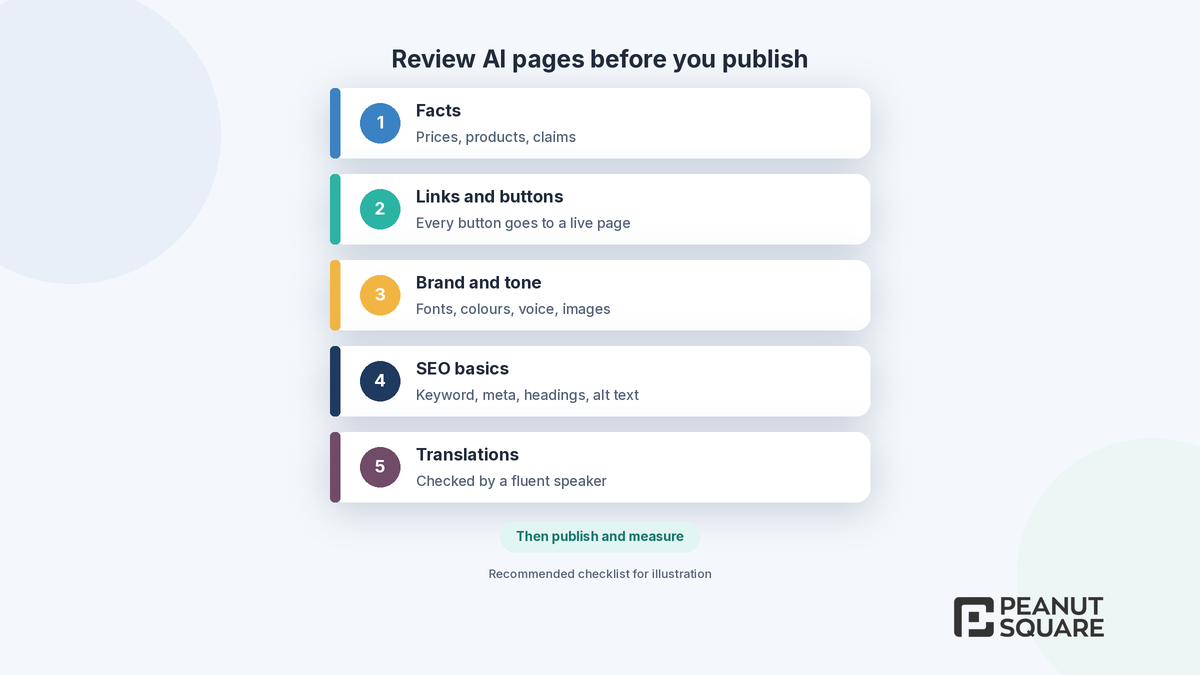
AI drafts from the Odoo 20 website builder are fast, but they are drafts. Before any AI-generated page goes live, we recommend this review workflow:
Check every fact. Prices, product details, certifications and claims must be correct. AI can write confident text that is wrong.
Check every link and button. The 20.0 Pages documentation itself says to confirm that all buttons are linked to an active webpage before publishing.
Check brand and tone. Make sure the page uses your fonts, colours, voice and approved images.
Check SEO basics. One clear focus keyword, a unique meta title and description, useful headings and image alt text.
Check translations with someone fluent in each language.
Publish, then measure. Track the page in your analytics and adjust.
Also note that using AI features in Odoo may consume credits or need configuration. Odoo's AI documentation explains how AI is set up in your database. If you are still on an older version, these website features arrive only after you upgrade. Our overview of Odoo 20 new features covers the rest of the release, and our guide to Odoo 20 manufacturing covers the shop floor changes.
How Peanut Square can help
Peanut Square is an Odoo Learning Partner based in Ahmedabad, Gujarat, founded in 2017. We have developed 90 Odoo modules and delivered 100+ projects, and our team includes an Odoo-certified consultant. Our Odoo clients include Renite Vitrified, Woodleaf and Madhav Solar. Through our Odoo migration and Odoo support services, we can plan your upgrade to Odoo 20, check your website theme and custom snippets, and set up a review process for AI-generated pages.
Want to use the Odoo 20 website builder safely on your site? Talk to us: https://www.peanutsquare.com/en/contact
About the author: Nishant Patel, CTO, Peanut Square
Nishant leads technology at Peanut Square, an Odoo Learning Partner founded in 2017 and based in Ahmedabad, Gujarat. The team has developed 90 Odoo modules, delivered 100+ projects and includes an Odoo-certified consultant.
Sources
Odoo 20 release notes (Website Builder, Blog and general sections): https://www.odoo.com/odoo-20-release-notes
Odoo blog, Meet Odoo 20 (24 September 2026): https://www.odoo.com/blog/odoo-news-5/meet-odoo-20-2439
Odoo 20.0 documentation, Pages: https://www.odoo.com/documentation/20.0/applications/websites/website/structure/pages.html
Odoo 20.0 documentation, SEO: https://www.odoo.com/documentation/20.0/applications/websites/website/structure/seo.html
Odoo 20.0 documentation, AI agents: https://www.odoo.com/documentation/20.0/applications/productivity/ai/agents.html
Odoo 20.0 documentation, AI: https://www.odoo.com/documentation/20.0/applications/productivity/ai.html
Can Odoo 20 build website pages from a text prompt?
Yes. Odoo 20's website builder can generate a page from a description. In the New Page pop-up you choose a template, enable AI Generate Text, type instructions, pick a tone and click Create with AI. The AI Website Assistant can also create new webpages and edit existing ones. Odoo's documentation notes that this is not available for the Blank template.
What can the Odoo 20 AI Website Assistant do?
According to the Odoo 20 release notes, it can choose and edit snippets, add images from Unsplash or generate them, retrieve content on the web, create new webpages, use your database records such as products or events, add interactive elements like counters, toggles, tabs and animations, create and edit webforms, edit menus and replicate a page from a URL.
Does Odoo 20 improve website SEO?
Yes. The release notes list AI help to improve a page's SEO, structured data added to page HTML by default for Google Rich Results, sitemaps limited to indexable 2XX URLs, adaptive image sizing for mobile and an llms.txt file in website settings. You still need to set a clear focus keyword, meta title and description for each important page.
Do I need to install the AI app to use the AI webpage generator?
No. Odoo's 20.0 Pages documentation says the AI app does not need to be installed to use the AI webpage generator. Odoo's AI documentation explains how AI features are configured and how credits are used in your database.
Should AI-generated Odoo pages be published straight away?
No. Review every AI-generated page before publishing: check facts and prices, make sure every link and button goes to a live page, match your brand and tone, set SEO basics and have translations checked by a fluent speaker. Odoo's own documentation asks you to confirm that all buttons are linked to an active webpage before publishing.