Quick answer: Odoo 20 manufacturing, released in September 2026, adds continuous production, so operators can record produced quantities on a work order and the next operation can start on those units straight away. It also lets you compare bills of materials side by side, reschedule manufacturing orders on the Gantt view with or without buffers, and plan from a redesigned manufacturing order Kanban grouped by week and colour-coded by status. Labels are redesigned too. Odoo's release notes list more changes, such as a single Produce button and split manufacturing orders. Test them on a copy of your database before you upgrade.
What is new in Odoo 20 manufacturing at a glance
Odoo announced the release in its Meet Odoo 20 post under the heading "Manufacturing that keeps moving", and the Odoo 20 release notes list more than thirty Manufacturing items, plus related changes in PLM, Shop Floor, Quality and Maintenance. For a manufacturer in Gujarat or anywhere in India, these are the Odoo MRP changes that affect daily planning and the shop floor:
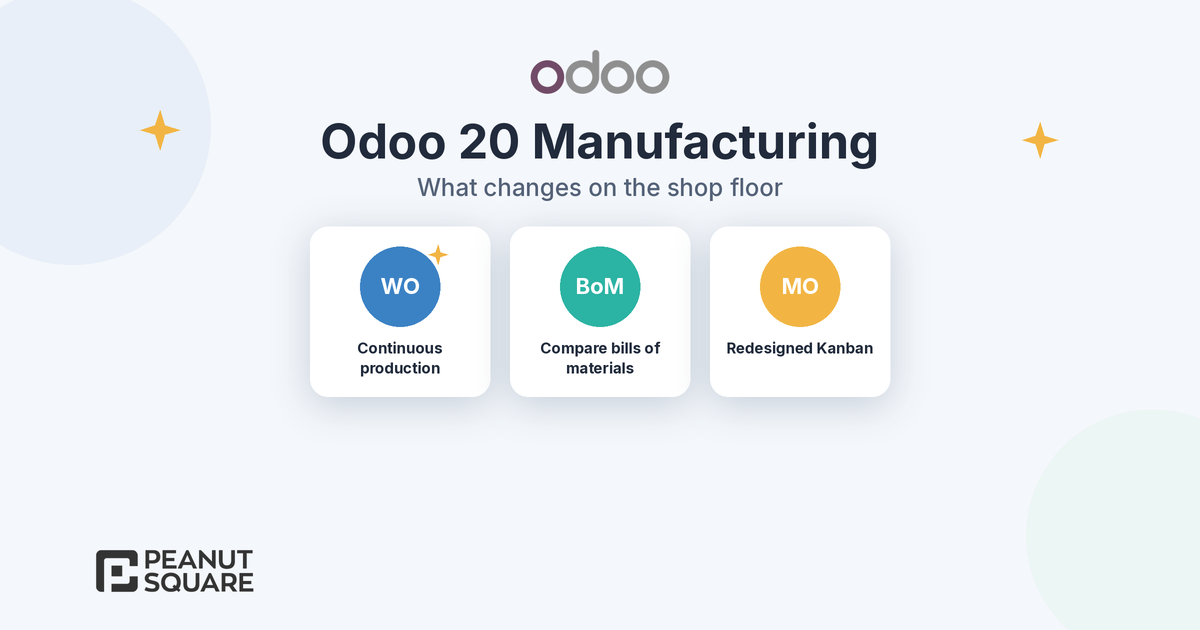
Flow: continuous production from work orders, so operations no longer wait for the full quantity of the previous step.
Engineering: compare bills of materials by component quantity, and see every BoM change, with cost comparisons, in one ECO report in PLM.
Planning: Gantt rescheduling with start and end buffers, drag-and-drop work order planning and manufacturing orders planned as soon as possible by default.
Visibility: a redesigned manufacturing order Kanban and a new work order Kanban view.
Printing: redesigned product, manufacturing and packaging labels.
For changes outside the factory, see our Odoo 20 new features guide, and for the warehouse side, our Odoo 20 inventory post.
Continuous production from work orders
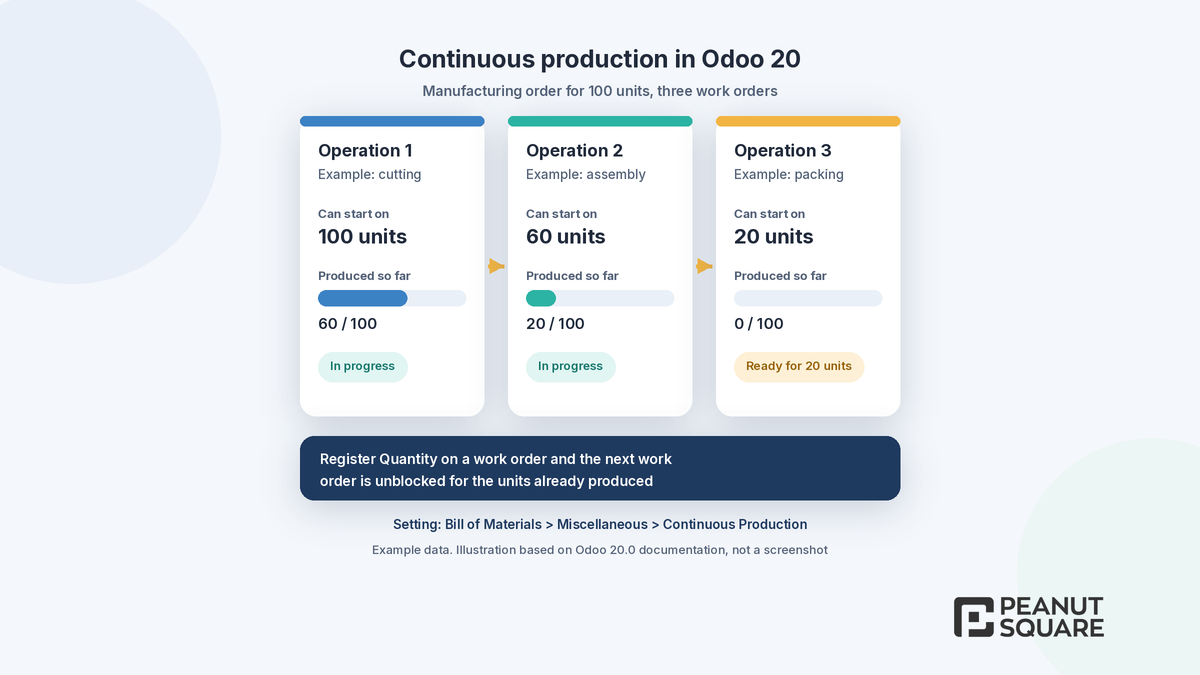
In the standard flow, each work order waits until the previous one has finished the full quantity. Odoo's continuous production documentation explains that this can create idle time on an assembly line where goods move from one machine or work station to the next in batches or waves.
Odoo 20 lets operators record produced quantities on work orders. If Continuous Production is enabled on the bill of materials, registering production on a work order unblocks the next work order for the units already made. The documentation's example: if the first operation has finished 20 units out of 100, those 20 can start the next operation while the first work center continues with the remaining 80.
To set it up, according to the documentation:
Go to Manufacturing > Configuration > Settings and enable Work Orders in the Operations section.
Open the product's bill of materials and, in the Miscellaneous tab, tick Continuous Production.
On the shop floor, open the work order card in the Shop Floor app, choose Register Quantity / Lot, enter the quantity produced and validate.
Two details are worth knowing. The quantities produced enter stock only after the manufacturing order is complete, and if you close the order before the full demand is produced, Odoo's normal backorder flow handles the rest. This suits continuous or batch lines such as tile pressing and firing, packaging lines or multi-stage fabrication, where waiting for a whole lot at each stage wastes hours.
Compare Bills of Materials
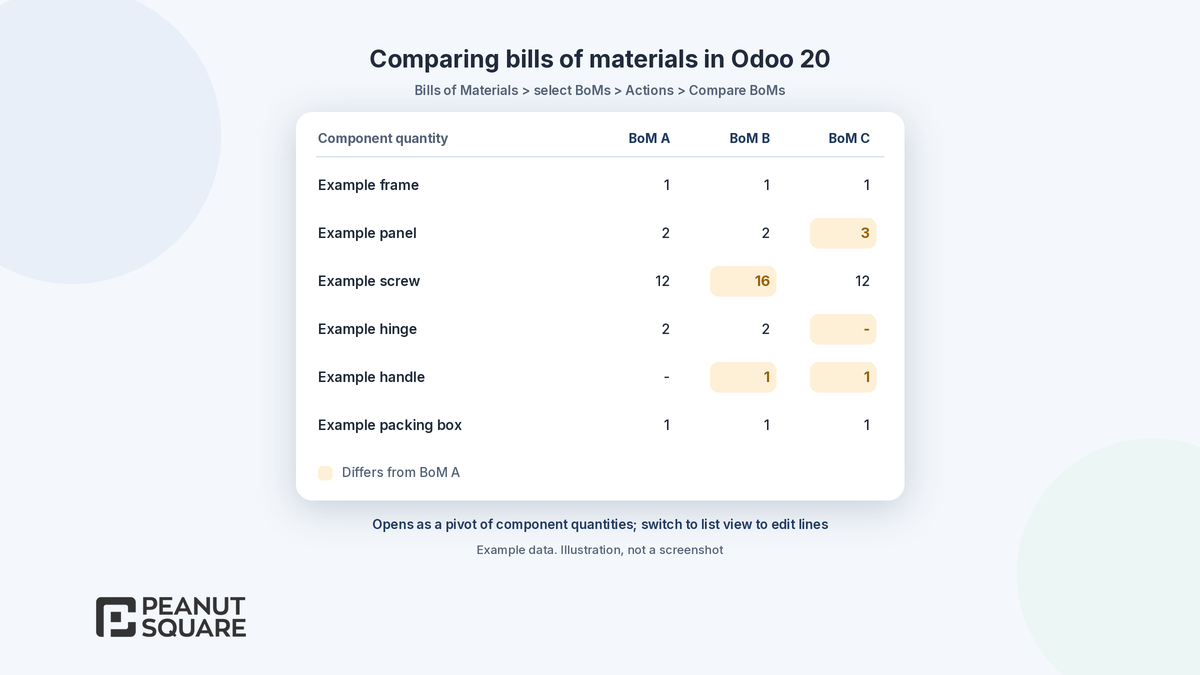
When you have variants of a product, or old and new versions of a design, the hard question is often "what is actually different?". The Odoo 20 release notes add a way to compare bills of materials based on the product quantities used, and the PLM app gets a BoM comparison to visualize changes more easily.
Odoo's bill of materials documentation describes the flow: on the Bills of Materials list, filter or select the BoMs you want, then choose Actions > Compare BoMs. The BoM Lines page opens in a pivot view that compares several BoMs at once by component quantity. Switch to the list view to update a component across several Odoo bills of materials in one go, for example when a supplier changes a part.
Related changes in the release notes:
The Used In smart button on a product now shows the BoM component lines that use it, which simplifies component replacements.
You can view and manage a BoM's components and sub-assemblies directly from the BoM form, and register extra costs for a manufacturing order in a dedicated field on the BoM.
In PLM, a universal ECO report shows all bill of material changes in one place, including cost comparisons, and version updates are now optional when applying an ECO. Odoo's PLM version control documentation explains how BoM versions are stored in engineering change orders.
Gantt rescheduling with buffers
Meet Odoo 20 says you can reschedule manufacturing orders on the Gantt view with or without buffers. The general section of the release notes adds starting and ending buffers that are displayed in Gantt views, and clicking a row or column now selects all its cells. The release notes do not explain where buffers are set for manufacturing, and the 20.0 documentation did not yet describe it when we checked on 20 October 2026, so confirm the setting on a test database.
The Manufacturing section lists more Odoo manufacturing Gantt and planning changes:
A new Gantt view for planning Odoo work orders with drag and drop, enhanced colour coding and planning by employee. Completed work orders now show by default.
Work orders can be confirmed from the Work Order Planning Gantt view, even when they contain draft work orders.
Manufacturing orders are planned as soon as possible by default. When several orders are planned, their sequence in the list sets the scheduling priority.
Backorders of planned productions are planned automatically when they are created.
In Maintenance, equipment and work center requests get dedicated Gantt views, and the work center overview has quick links to work orders and maintenance planning.
Buffers are useful when a machine needs set-up or cleaning time between jobs, or when you want a safety margin before a customer deadline. Decide your buffer rules with the planning team before you switch, because they change the dates the shop floor sees.
The new manufacturing Kanban
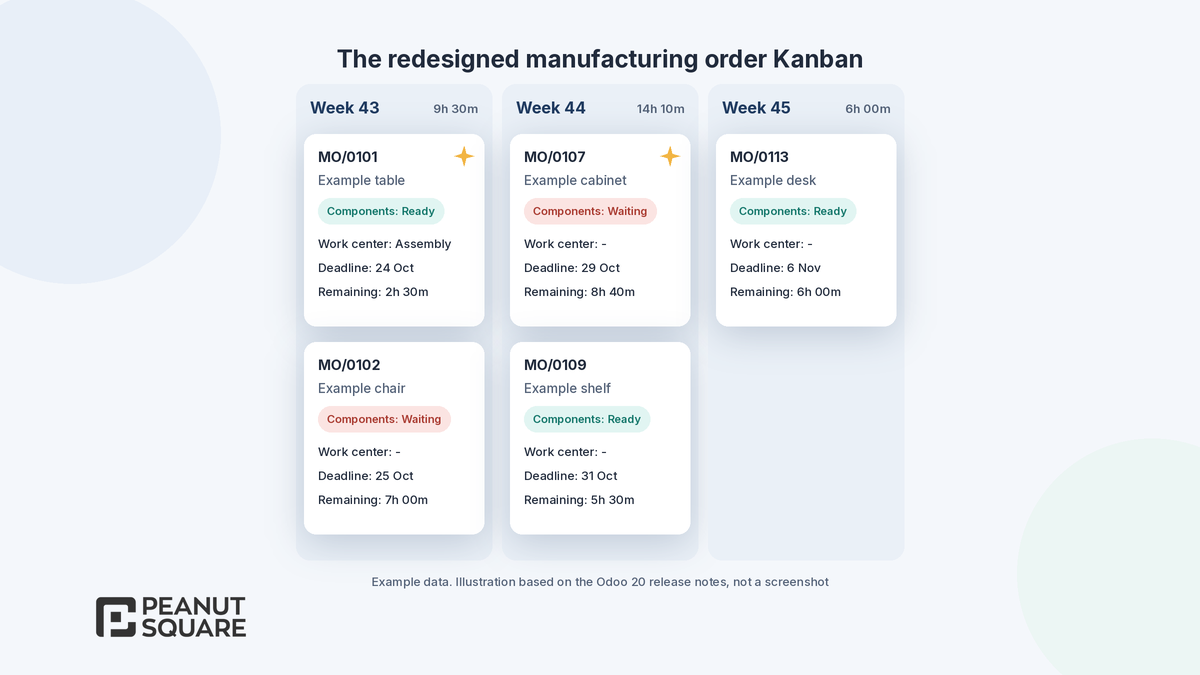
The release notes say the manufacturing order Kanban view has been redesigned. Cards are grouped by scheduled date in weeks and show component status, the active work center, the deadline and the remaining time. The total remaining time for all manufacturing orders is shown in every Group By search. Meet Odoo 20 adds that you manage priorities with drag and drop on the new Kanban view, which is colour-coded so urgent orders stand out.
Odoo's 20.0 production overview documentation describes this Kanban as the production overview: cards are sorted by priority, then scheduled date; a coloured progress bar above each column shows the status mix; and you can also group by product, status, material availability (Ready or Waiting), date or deadline. Odoo 20 also adds a separate work order Kanban view to visualize and adapt work order planning.
For a production manager, this means one screen for the weekly meeting: which orders are waiting for components, which work center is busy and how many hours of work are left this week.
Labels redesign
The general section of the release notes states that product, manufacturing and packaging labels have been redesigned, and Meet Odoo 20 mentions that shelf labels got a full redesign. In Inventory, location barcode labels are now also available in ZPL format for thermal printers.
The release notes do not show the new layouts. If you print labels for finished goods, lots or cartons, print each label type on your own printers and label stock from an upgraded test database. Check any customised label report too, because it may need to be adapted to the new design.
Other Odoo 20 manufacturing changes worth knowing
One Produce button: the separate Produce and Produce All buttons are replaced by a single Produce button in Manufacturing, Shop Floor and Barcode.
Flexible consumption by default: the flexible consumption setting on bills of materials is removed, and all manufacturing orders use flexible consumption. If you relied on strict or warning settings to control component use, review that control before you upgrade.
Split and reset: split ongoing manufacturing orders to produce the rest later, and reset validated or cancelled orders to draft.
Draft or confirmed orders: on the Manufacturing operation type, choose whether procurement creates draft or confirmed manufacturing orders.
Lots and serials: generated automatically when manufacturing orders are closed, and expiration dates are added to the traceability report.
Costing: the MO Cost field shows a provisional cost while the order is in progress and the real cost when it is done.
Subcontracting: component status and the MO overview are available for subcontracted production, so you can see and order missing components.
Shop Floor: an HTML note field on manufacturing orders, pre-filled instructions when updating them, and work center selection by barcode scan.
Quality: quality admin users can validate inventory transfers without performing quality checks, and a failure location can be set when a check fails.
What should manufacturers test before upgrading to Odoo 20?
Odoo's upgrade documentation recommends requesting an upgraded test database and testing it thoroughly first. On that copy, we suggest your planning, production, stores and accounts teams check at least these points:
One product with Continuous Production enabled, run through every work order with partial quantities in Shop Floor.
A backorder created by closing a manufacturing order early.
Compare BoMs on two versions of a real product, and a component replacement across several BoMs.
Gantt rescheduling with and without buffers, and the effect on promised delivery dates.
The new Kanban views in your weekly production meeting.
Component consumption now that flexible consumption is the default.
Every label you print, on your own printers.
Any custom module that touches manufacturing orders, work orders or labels. The upgrade documentation warns that a database with custom modules cannot be upgraded until those modules are available for the target version.
If you are still deciding when to move, our Odoo 19 vs Odoo 20 guide explains support dates and when waiting makes sense, and our Odoo Studio vs custom development post explains how to keep custom code, and upgrade effort, low.
How Peanut Square can help
Peanut Square is an Odoo Learning Partner based in Ahmedabad, Gujarat, founded in 2017. We have developed 90 Odoo modules and delivered 100+ projects, and our team includes an Odoo-certified consultant. Our Odoo clients include Renite Vitrified, Woodleaf and Madhav Solar. Through our Odoo implementation and Odoo migration services, and our wider Odoo ERP work, we can review your bills of materials, routings and work centers against the Odoo 20 manufacturing changes, plan a test upgrade and help your production team check it.
Planning your move to Odoo 20 manufacturing? Talk to us: https://www.peanutsquare.com/en/contact
About the author: Nishant Patel, CTO, Peanut Square
Nishant leads technology at Peanut Square, an Odoo Learning Partner founded in 2017 and based in Ahmedabad, Gujarat. The team has developed 90 Odoo modules, delivered 100+ projects and includes an Odoo-certified consultant.
Sources
Odoo 20 release notes, Manufacturing, PLM, Shop Floor, Quality, Maintenance, Inventory and General sections (September 2026): https://www.odoo.com/odoo-20-release-notes
Meet Odoo 20 (Odoo blog, 24 Sep 2026): https://www.odoo.com/blog/odoo-news-5/meet-odoo-20-2439
Odoo 20.0 documentation, Continuous production: https://www.odoo.com/documentation/20.0/applications/inventory_and_mrp/manufacturing/workflows/continuous_production.html
Odoo 20.0 documentation, Bill of materials (Compare BoMs): https://www.odoo.com/documentation/20.0/applications/inventory_and_mrp/manufacturing/basic_setup/bill_configuration.html
Odoo 20.0 documentation, Production overview (Kanban): https://www.odoo.com/documentation/20.0/applications/inventory_and_mrp/manufacturing/reporting/production_overview.html
Odoo 20.0 documentation, PLM version control: https://www.odoo.com/documentation/20.0/applications/inventory_and_mrp/plm/manage_changes/version_control.html
Odoo 20.0 documentation, Upgrade: https://www.odoo.com/documentation/20.0/administration/upgrade.html
What is new in Odoo 20 manufacturing?
Odoo 20 adds continuous production from work orders, a way to compare bills of materials by component quantity, Gantt rescheduling of manufacturing orders with or without buffers, a redesigned manufacturing order Kanban grouped by week and colour-coded by status, and redesigned labels. The release notes also list a single Produce button, flexible consumption by default, split manufacturing orders and a new work order Kanban view.
What is continuous production in Odoo 20?
Continuous production lets operators record produced quantities on a work order so the next work order can start on those units without waiting for the full quantity. Odoo's documentation gives the example of 20 units out of 100 finished at the first operation moving on while the rest are still being made. You enable it with the Continuous Production option in the Miscellaneous tab of the bill of materials, with Work Orders enabled in Manufacturing settings.
How do I compare bills of materials in Odoo 20?
Open the Bills of Materials list, select the BoMs you want and choose Actions > Compare BoMs. According to Odoo's 20.0 documentation, the BoM Lines page opens in a pivot view that compares component quantities, and you can switch to the list view to update a component across several BoMs at once. The PLM app also gets a BoM comparison and a universal ECO report.
Does Odoo 20 still support strict component consumption on manufacturing orders?
The Odoo 20 release notes say the flexible consumption setting on bills of materials has been removed and all manufacturing orders now use flexible consumption. If you relied on strict or warning settings to control component use, review that control on a test database before you upgrade.
Should I upgrade to Odoo 20 for the manufacturing changes?
Test first. Upgrade a copy of your database, run a few real manufacturing orders through continuous production, Gantt planning and label printing, and check custom modules and reports. Odoo's upgrade documentation warns that a database with custom modules cannot be upgraded until those modules are available for the target version.