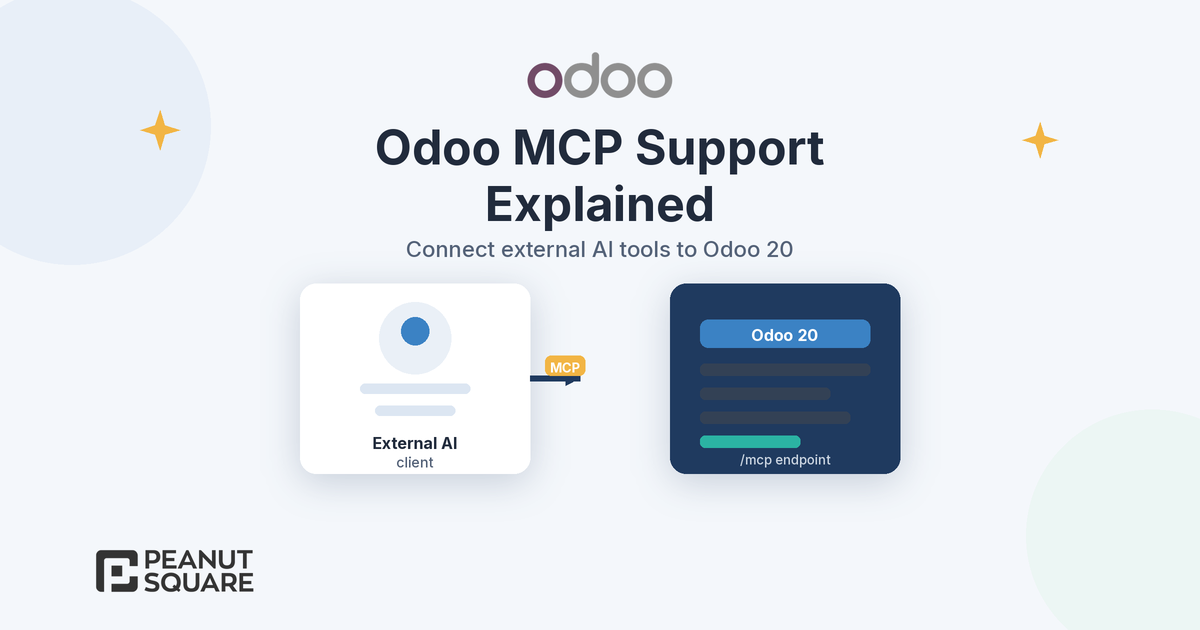
Quick answer: Odoo MCP is Odoo 20's support for the Model Context Protocol. It lets an external AI tool (the MCP client) connect to your Odoo database through an /mcp endpoint, using an API key with the MCP scope. The client can then read or write data by calling Server Actions exposed as tools, and those calls stay inside the access rights of the user behind the key. Plan the key, the tools you expose and a governance checklist before you switch it on.
What is Odoo MCP?
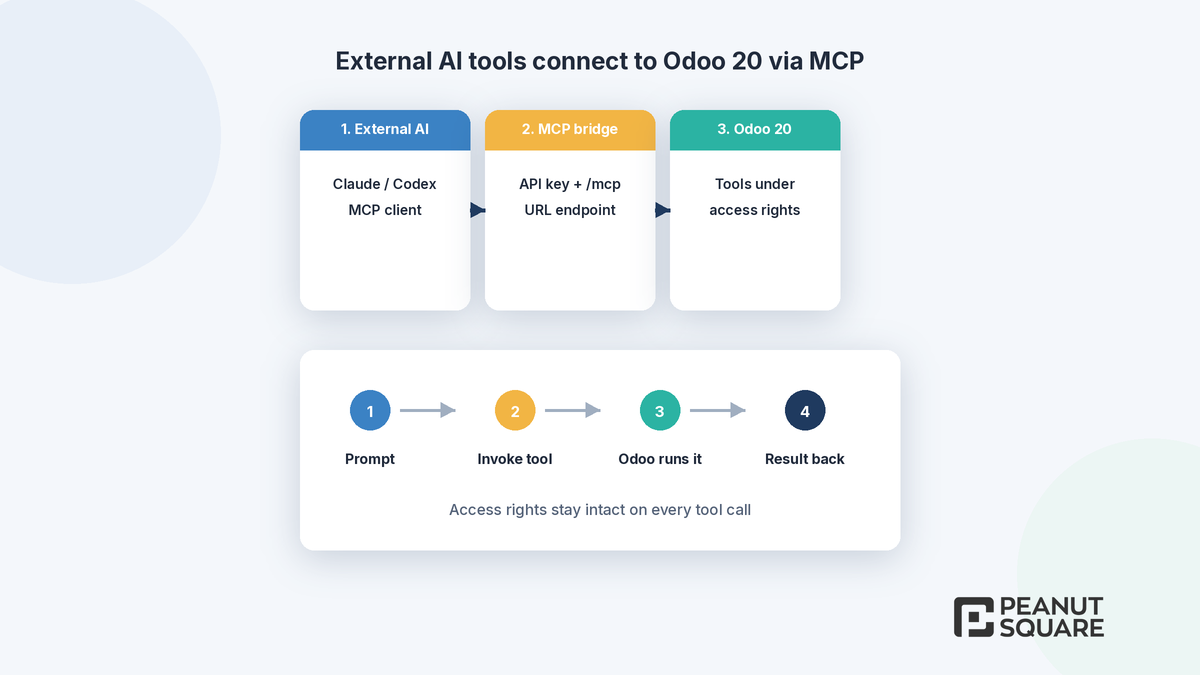
According to Odoo's 20.0 documentation, Model Context Protocol (MCP) is an open-source standard that lets large language models securely interact with external applications and access their data. In Odoo AI, you connect an external AI agent to your Odoo database through an Odoo MCP server so the agent can read or modify the database using your own local AI workflows.
In that workflow, the Odoo database acts as a remote MCP server. The MCP client (your external AI agent) asks the server to run tools such as searching records or editing data. You only talk to the client in plain language; the tool calls happen behind the scenes. Odoo's Odoo 20 release notes summarise it as: "Connect to your database via MCP (model context protocol)." The Meet Odoo 20 blog puts the same idea in plain language: connect your database once and an external AI tool can securely read and write your data, with your access rights intact.
What Odoo 20 supports
Odoo's MCP server documentation covers three configuration steps: set up authentication with an API key, configure the client with the server URL, and expose Server Actions to the client. You need an MCP-compatible AI agent (Odoo's docs name examples such as Claude Code, Antigravity and Codex) and Node.js to run the npx command used in the client configs. Odoo 20's built-in MCP server is part of the Enterprise AI app and needs Odoo's Custom plan; it isn't included in the Standard plan or Community.
API key with the MCP scope
Under My Preferences > Security, you add an API key, choose the MCP scope, set an expiry (for example 1 Month) and create the key. Odoo shows the key only once, so save it somewhere safe. Every MCP request uses that key to authenticate the user's identity and permissions in the database.
The /mcp endpoint
The client connects to your database URL with /mcp appended (for example https://example.odoo.com/mcp), sending the key as a Bearer token. Odoo documents JSON and CLI snippets for Claude Desktop, Claude Code, Antigravity and Codex that call npx -y mcp-remote with that URL and header.
Default tools and Available in MCP
By default, Odoo exposes these tools to the client: AI Tool: Get Fields, Get Models, MCP Retrieve initial context, Search and Read group. Other tools stay hidden until you open Settings > Technical > Server Actions (developer mode), open a tool and tick Available in MCP on the Usage tab. You can also tick Readonly Tool to mark a tool that does not write or modify data, so the client can treat it as safe to invoke without user approval. Enabling Readonly Tool does not hide the tool; it only advises the client.
For the wider Odoo 20 picture, see our Odoo 20 new features guide and our notes on Odoo 20 India localization. If you are planning in-product AI agents rather than an external client, our Odoo AI agents explainer covers skills, tools and credits.
Access rights and security
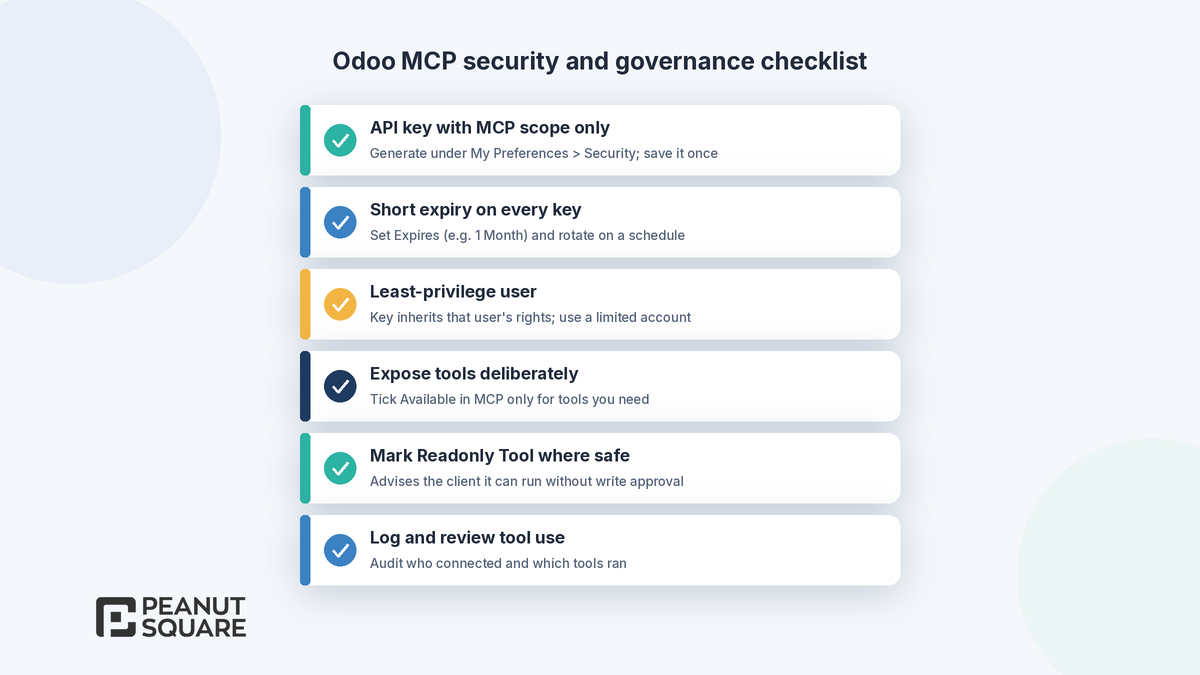
Odoo's docs are clear that the API key authenticates the user's identity and permissions, and the Meet Odoo 20 post states that access rights stay intact. Treat MCP like any other integration that can read and write live data:
Create the key for a user who only has the rights the AI should have, not for a full administrator unless that is intentional.
Prefer a short expiry and rotate keys on a schedule.
Expose write-capable tools only when you need them; leave the rest unticked.
Use Readonly Tool for search and reporting tools where it applies.
Keep a record of which keys exist, who owns them and which client machines are configured.
Use cases for external AI tools
Odoo's MCP documentation groups example prompts into three areas:
Data analysis and reporting: pipeline reviews by stage and salesperson, manufacturing or inventory planning questions, and historical invoicing comparisons.
Navigation and UI interaction: bulk contact creation from pasted leads, filtering and grouping the open view, and looking up or editing a field on a record.
Custom styling: website banner or copy changes, site-wide styling tweaks and AI image generation for a hero section.
These examples show the range, from read-only reporting to creating and editing records. Decide which use cases are allowed in your company before you expose the matching tools.
Governance checklist
Use this list before you connect any external client to Odoo MCP in production.
Confirm you are on Odoo 20 (or a build that includes the MCP server docs you are following).
Name an owner for MCP keys and client configs (usually IT or the ERP admin).
Create a least-privilege user and an MCP-scoped API key with a short expiry.
Connect one approved MCP-compatible client in a test database first.
Review the default tools, then expose any extra Server Actions only after a written use case.
Mark read-only tools with Readonly Tool where appropriate.
Document allowed prompts and forbidden actions (for example, no mass deletes, no bank payment changes).
Plan how you will revoke a key if a laptop is lost or a contractor leaves.
Retest after upgrades, because Server Actions and access rights can change between versions.
How Peanut Square can help
Peanut Square is an Odoo Learning Partner based in Ahmedabad, Gujarat, founded in 2017. We have developed 90 Odoo modules and delivered 100+ projects, and our team includes an Odoo-certified consultant. Our Odoo clients include Renite Vitrified (https://renitevitrified.com/), Woodleaf and Madhav Solar. We can help you plan Odoo AI and integration work through our Odoo ERP and Odoo implementation services, including how MCP fits next to in-product AI agents.
Talk through an Odoo 20 AI plan: https://www.peanutsquare.com/en/contact
About the author: Nishant Patel, CTO, Peanut Square
Nishant leads technology at Peanut Square, an Odoo Learning Partner founded in 2017 and based in Ahmedabad, Gujarat. The team has developed 90 Odoo modules, delivered 100+ projects and includes an Odoo-certified consultant.
Sources
Odoo 20.0 documentation, AI MCP server: https://www.odoo.com/documentation/20.0/applications/productivity/ai/mcp_server.html
Odoo 20 release notes, AI: Connect to your database via MCP: https://www.odoo.com/odoo-20-release-notes
Meet Odoo 20 (Odoo blog, 24 Sep 2026): https://www.odoo.com/blog/odoo-news-5/meet-odoo-20-2439
What is Odoo MCP?
Odoo MCP is Odoo 20's support for the Model Context Protocol. According to Odoo's 20.0 documentation, it lets an external AI agent connect to your Odoo database through an Odoo MCP server so the agent can read or modify data using your local AI workflows, within the access rights of the authenticated user.
How do you connect an external AI tool to Odoo 20?
Odoo's docs describe three steps: create an API key with the MCP scope under My Preferences > Security, configure the client with that key and your database URL plus /mcp, then expose any extra Server Actions by ticking Available in MCP. You need an MCP-compatible client and Node.js for the documented npx mcp-remote setup.
Do Odoo access rights still apply over MCP?
Yes. The API key authenticates the user's identity and permissions, and Odoo's Meet Odoo 20 post states that an external AI tool can securely read and write data with your access rights intact. Use a least-privilege user for the key.
Which tools does Odoo expose to MCP by default?
By default: AI Tool Get Fields, Get Models, MCP Retrieve initial context, Search and Read group. Other tools stay hidden until you tick Available in MCP on the Server Action. Readonly Tool marks a tool that does not write data and can be invoked without user approval.
What should you check before enabling Odoo MCP in production?
Name an owner for keys and clients, use a short-lived MCP-scoped key on a least-privilege user, test in a copy of the database first, expose write tools only for agreed use cases, document allowed prompts, and plan how you will revoke a key if a device is lost.