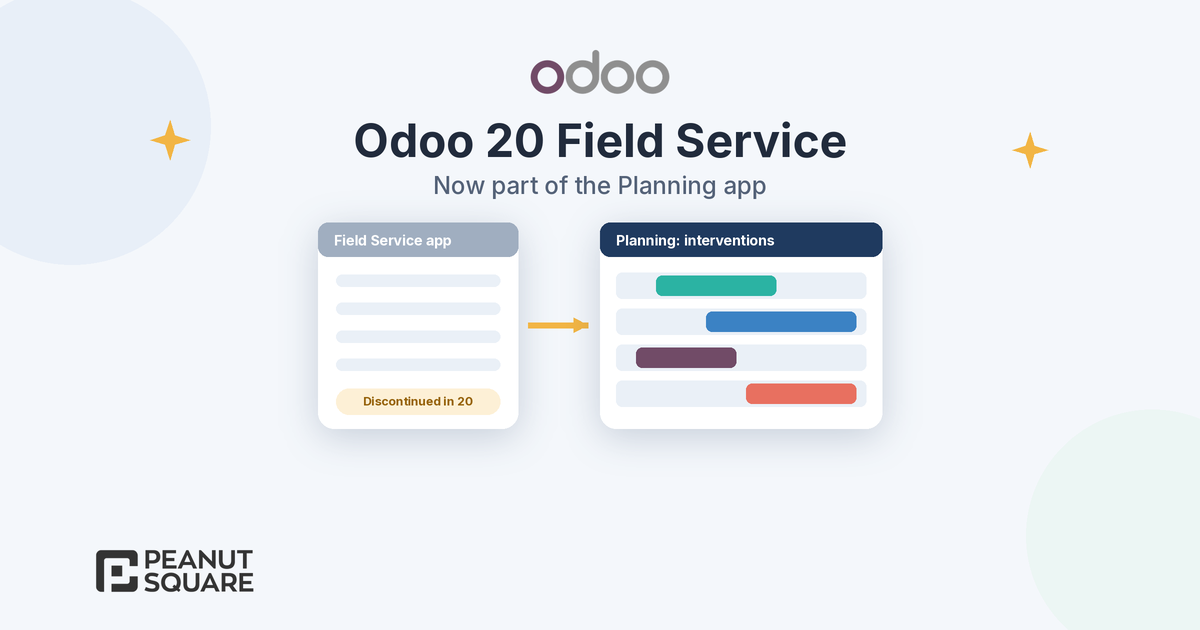
Quick answer: Odoo field service moves into the Planning app in Odoo 20. The standalone Field Service app is discontinued. On-site interventions are planned as Planning shifts, and Planning gains field service features such as auto planning that uses customer locations, a live map of technicians, ordered or optimized routing, travel fees, worksheets on shift templates and customer equipment history. Odoo 20 also adds offline mode across the platform.
Odoo 20 was announced in September 2026, and one of its biggest structural changes affects any company that sends technicians, installers or service engineers to customer sites. The Odoo 20 release notes put it in one line: "The Field Service app has been discontinued. Its features are now integrated into the Planning app." This guide explains what that means for Odoo field service users, what the Odoo Planning app now does for on-site work, and what to test before you upgrade. Every feature below comes from Odoo's official release notes, the Meet Odoo 20 announcement or the Odoo 20.0 documentation, all linked at the end.
What happened to the Field Service app in Odoo 20?
The Field Service app no longer exists as a separate app in Odoo 20. Its features now live in Planning, and the 20.0 documentation describes Field Service as a feature that "allows on-site interventions to be scheduled directly in the Planning app". You switch it on in Planning ‣ Configuration ‣ Settings by enabling Field Service.
The Meet Odoo 20 post summarises the new experience: you drag and drop interventions onto the calendar "with travel time calculated automatically", switch to map view to track your crew's live location, and see the calendars you use, such as Google and Outlook, in one view. For a business, the practical effect is simple: dispatchers schedule people, shifts and interventions in one app instead of two.
Scheduling interventions in Planning
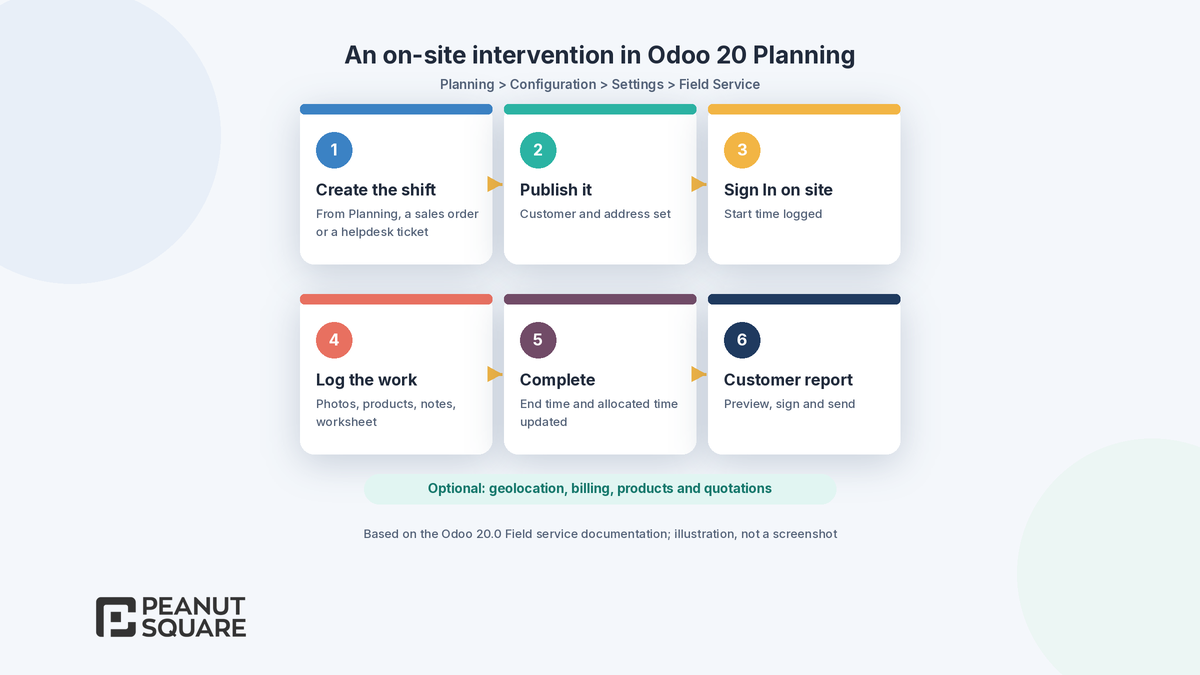
According to the 20.0 Field service documentation, interventions are planned as shifts and can be created in three ways:
directly from the Planning app, like any standard shift;
from sales orders, for service products set to plan services with a role;
from helpdesk tickets.
The shift form carries the field service details: the Customer, the Sales Order to bill (only orders for that customer with service products are offered), the Worksheet template, and an Under warranty checkbox that sets the price of materials or services added from the shift to zero. Once the shift is published, the technician can open it from My Planning, click Sign In on site, add photos, products, notes and the worksheet, and click Complete. Odoo then updates the start and end times and the allocated time, and generates the customer report if applicable.
The Planning section of the Odoo 20 release notes adds several scheduling changes that help service teams:
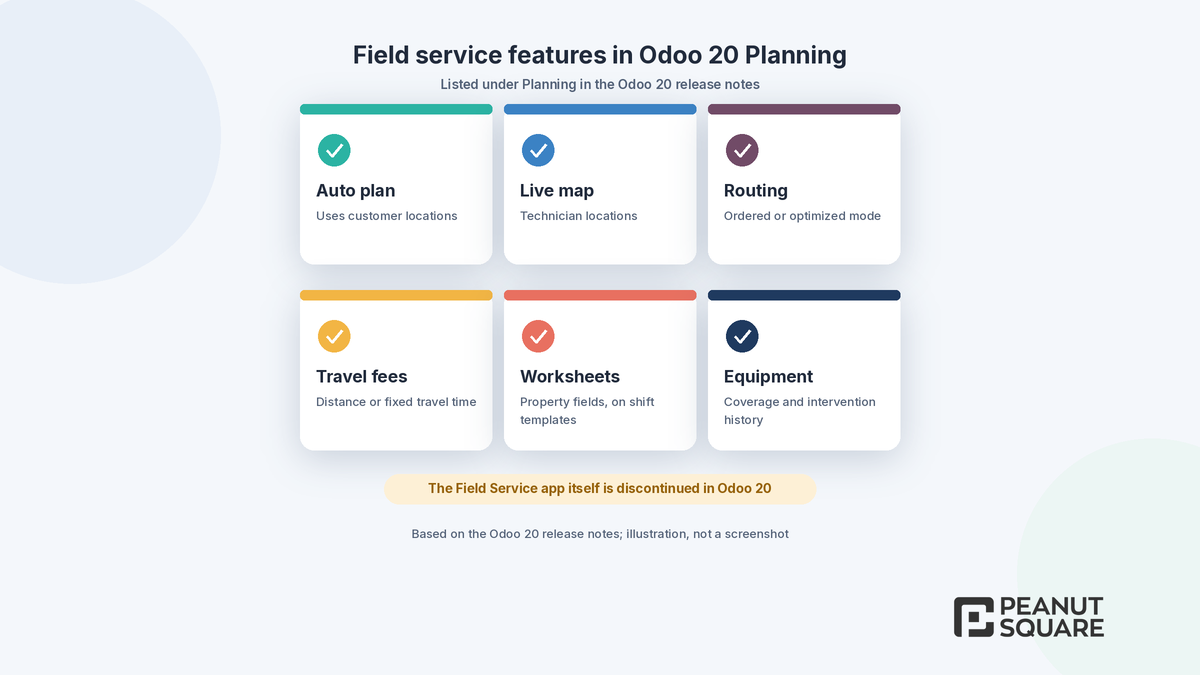
Auto plan with locations: customer locations are taken into account for automatic shift planning.
Priority shifts: when using Auto Plan, higher-priority shifts are scheduled first.
Side panel scheduling: drag and drop shifts from the side panel into the calendar or Gantt view.
Multiple resources: assign several resources to the same shift, and link a shift to a specific task.
Employee-specific materials: materials assigned to an employee are added to their shift's resources automatically.
Confirmation email: choose whether customers automatically receive an email when an intervention shift is published.
Website form: collect service requests through a website form instead of letting customers book directly.
Travel time and map view
Travel is where field work loses most time, and Odoo 20 puts several travel features into Planning. The release notes list a live map to track technicians' locations, a map view showing both shift locations and technician availability, and routing preferences with two modes: ordered, which respects the order of the addresses, and optimized, which calculates the shortest path. If you connect the Mapbox integration, the Gantt view can display travel times to help you schedule shifts.
The 20.0 documentation adds the technician's side. Planning ‣ Planning ‣ My Map shows the day's interventions, sorted by planned time, with a Navigate to button that opens directions in Google Maps. Administrators can see all resources and their intervention locations under Planning ‣ Maps. An optional Geolocation setting logs GPS coordinates in the shift's chatter when a technician signs in and completes an intervention. A valid customer address is required for an intervention to appear on the map.
For billing, the release notes add travel fees: you can invoice customers for distance-based travel fees or a fixed travel-time fee. The documentation also covers billing materials from the shift, time-based invoicing through Project and Timesheets, quotations created from a shift, and a customer report that the customer can sign.
Calendar sync and customer history
Meet Odoo 20 says every calendar you use, "Google, Outlook, and more", syncs into one view, so nothing on the schedule slips through the cracks. Check how this works with your own calendars on a test database before you rely on it for dispatch.
For service companies that maintain equipment, the release notes add customer equipment features in Planning. You can track whether customer equipment is covered by a maintenance contract through Subscriptions, open documentation for equipment installed at the customer's site directly from shifts, and track customer equipment and intervention history. Customer ratings let you track satisfaction for on-site interventions, and products can be added to a shift by scanning their barcodes.
Working offline
Technicians often work in basements, plants and rural sites with weak signal. Odoo 20 adds an offline mode in the general section of the release notes: you can create, edit, archive, unarchive and delete records while offline, and run previously executed searches. Meet Odoo 20 adds that everything syncs "the moment you're back online". Test offline use on the phones and tablets your technicians actually carry, with your real worksheets, before you depend on it at a customer site.
Worksheets and reports
Worksheet templates change in Odoo 20. The release notes say they "now use property fields instead of Studio fields", and you can add worksheets to shift templates. In the 20.0 documentation, you enable Worksheets in the Field Service section of the Planning settings, then build templates under Planning ‣ Configuration ‣ Worksheet Templates by adding property fields. Enabling worksheets also turns on the Customer Report feature. The release notes also say Studio fields are shown on the field service report.
How do you move Odoo field service to Odoo 20?
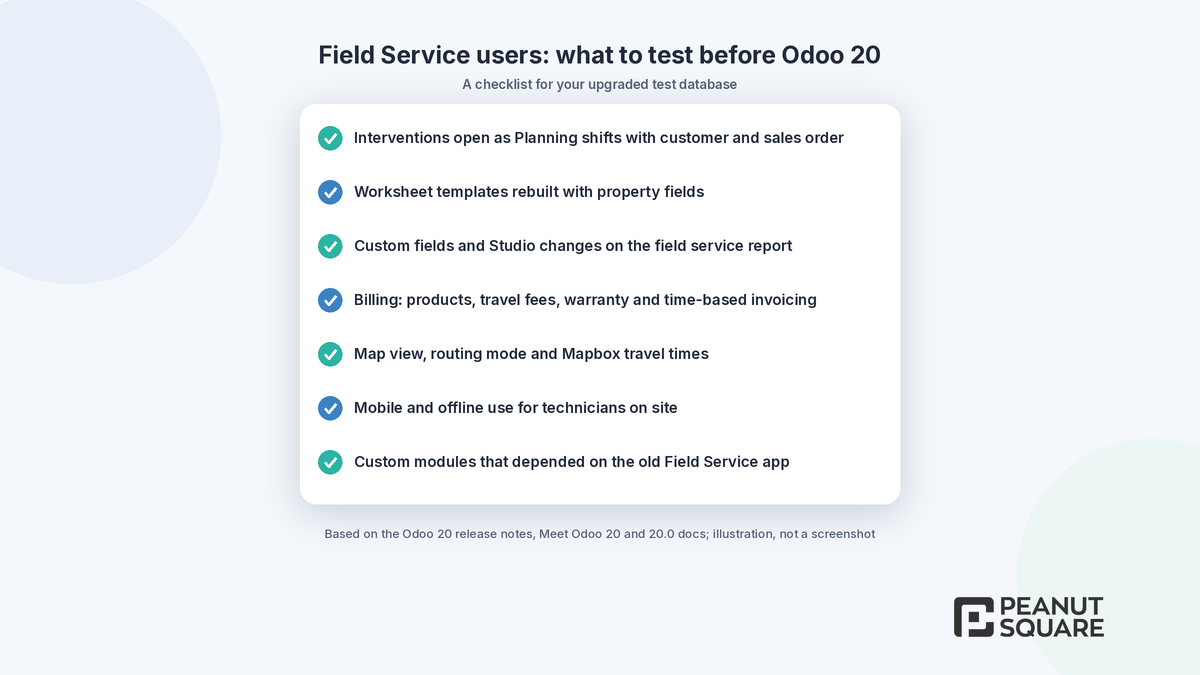
If you use Odoo Field Service today, treat the move to Odoo 20 as a process change, not only a version upgrade. Odoo's upgrade documentation recommends requesting an upgraded test database first and testing it thoroughly before upgrading production. For field service, focus your tests on these points:
Check that existing and future interventions appear as Planning shifts with the right customer, sales order and worksheet.
Rebuild or review worksheet templates, since they now use property fields, and check your field service report layout.
Test billing end to end: products from the shift, warranty work, travel fees and time-based invoicing.
Try the map view, routing modes and, if you use it, the Mapbox integration with real customer addresses.
Run a day of work offline on a technician's device and confirm that the sync is complete.
List any custom modules or reports built on the old Field Service app; these need to be adapted to Planning before the upgrade.
Train dispatchers and technicians on the Planning screens before go-live.
What happened to the Field Service app in Odoo 20?
The Odoo 20 release notes say the Field Service app has been discontinued and its features are now integrated into the Planning app. On-site interventions are scheduled as Planning shifts, and you enable the feature in Planning > Configuration > Settings > Field Service.
How do I schedule an on-site intervention in Odoo 20?
According to the 20.0 documentation, interventions are shifts created from the Planning app, from sales orders for service products, or from helpdesk tickets. Set the customer, sales order and worksheet on the shift and publish it. The technician then signs in on site from My Planning, logs photos, products and notes, and clicks Complete.
Does Odoo 20 show travel time and technician locations?
Yes. The release notes list a live map of technicians, a map view with shift locations and technician availability, ordered or optimized routing, and travel times in the Gantt view through the Mapbox integration. Meet Odoo 20 says travel time is calculated automatically when you drag interventions onto the calendar.
Can technicians use Odoo 20 offline?
The release notes add an offline mode that lets users create, edit, archive, unarchive and delete records while offline and run previously executed searches. Meet Odoo 20 says data syncs once you are back online. Test it on your technicians' own devices before relying on it.
What should Field Service users test before upgrading to Odoo 20?
Request an upgraded test database and check that interventions appear as Planning shifts, rebuild worksheet templates (they now use property fields), test billing including travel fees and warranty work, try map view and routing, run a day offline, and adapt any custom modules built on the old Field Service app.
Our Odoo implementation and Odoo migration services cover test upgrades like this, and our Odoo ERP page explains how Planning fits with Sales, Project and Inventory. For the wider release, read Odoo 20 new features, our Odoo 19 vs Odoo 20 comparison and our guide to Odoo 20 payroll, which also notes that the Planning-Payroll integration has been removed.
How Peanut Square can help
Peanut Square is an Odoo Learning Partner based in Ahmedabad, Gujarat, founded in 2017. We have developed 90 Odoo modules and delivered 100+ projects, and our team includes an Odoo-certified consultant. Our Odoo clients include Renite Vitrified, Woodleaf and Madhav Solar. We can help you map your service process to Odoo 20 Planning, set up an upgraded test database, review custom modules that depend on Field Service and plan training for dispatchers and technicians.
Using Odoo Field Service and planning for Odoo 20? Talk to us: https://www.peanutsquare.com/en/contact
About the author: Nishant Patel, CTO, Peanut Square
Nishant leads technology at Peanut Square, an Odoo Learning Partner founded in 2017 and based in Ahmedabad, Gujarat. The team has developed 90 Odoo modules, delivered 100+ projects and includes an Odoo-certified consultant.
Sources
Odoo 20 release notes (General, Field Service and Planning sections): https://www.odoo.com/odoo-20-release-notes
Odoo blog, Meet Odoo 20: https://www.odoo.com/blog/odoo-news-5/meet-odoo-20-2439
Odoo 20.0 documentation, Field service: https://www.odoo.com/documentation/20.0/applications/services/planning/field_service.html
Odoo 20.0 documentation, Planning: https://www.odoo.com/documentation/20.0/applications/services/planning.html
Odoo 20.0 documentation, Upgrade: https://www.odoo.com/documentation/20.0/administration/upgrade.html