Quick answer: Odoo 20 POS adds a redesigned floor plan editor, combo suggestions that turn separate order lines into a combo, one-tap snoozing of unavailable products on the POS and self-ordering menu, and customer notes from self-ordering that appear on the kitchen display. For retail, the main changes are simplified stock without the Inventory app, multiple currencies at checkout, static UPI QR code payments and expired product alerts.
Odoo 20 was announced in September 2026, and the Odoo point of sale app received one of the longer lists in the release notes. This guide sorts those changes for two audiences: restaurants and cafes that run tables, kitchens and self-ordering, and retail stores that need fast billing, labels and clean stock. Every feature below comes from Odoo's official release notes, the Meet Odoo 20 announcement or the Odoo 20.0 documentation, linked at the end. Treat it as a checklist for planning and testing, not as a promise of how each screen behaves in your database.
What's new in Odoo 20 POS?
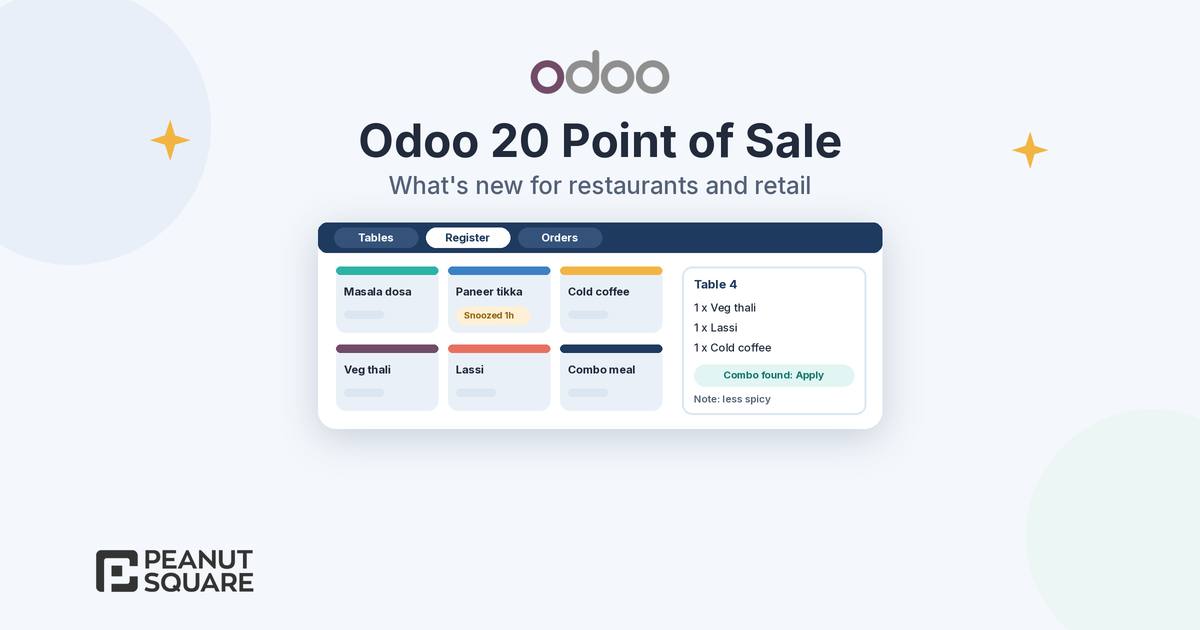
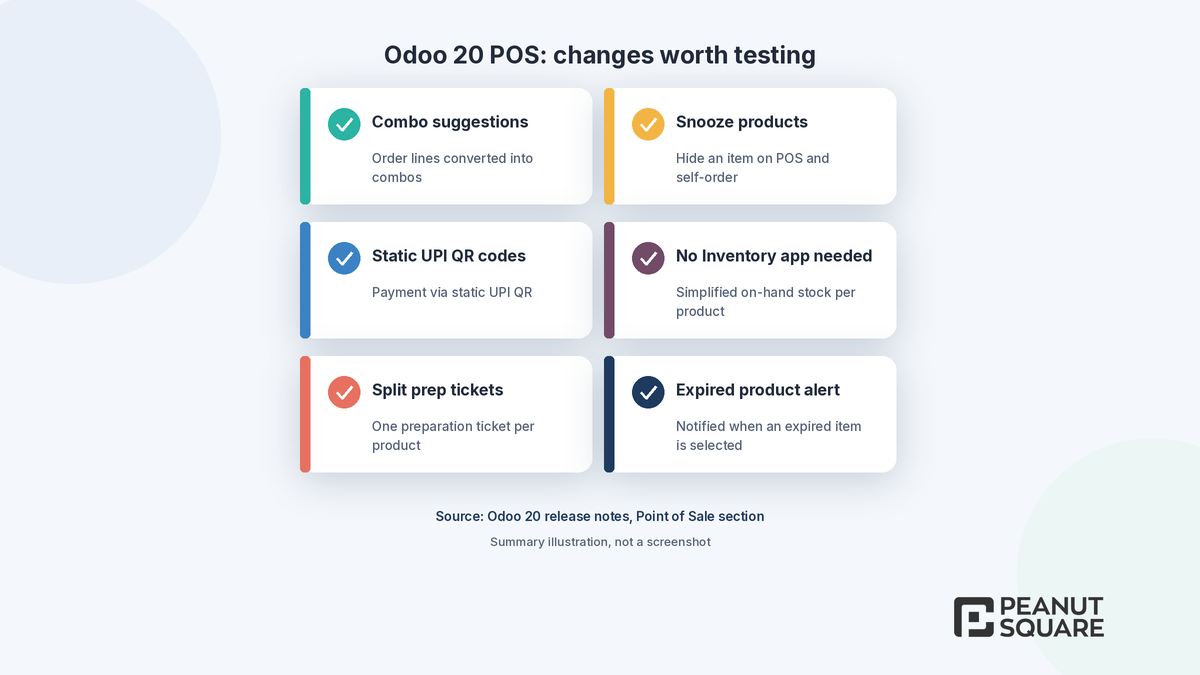
Odoo summarises the restaurant changes in its Meet Odoo 20 announcement: a redesigned floor plan editor, combos that build themselves as you add menu items, one-tap snoozing of an unavailable dish, and customer notes at checkout that show up on the kitchen screen. The release notes add a longer list that matters for both restaurants and shops:
Combo suggestions: the POS recommends converting order lines into a combo when possible, which Odoo says simplifies menu orders for big tables.
Snooze products: make products temporarily unavailable on the POS or self-ordering menu.
Self-ordering: notes at checkout visible on the kitchen display, optional products on mobile and kiosk, an order-specific QR code to order and pay after the meal, and receipts by WhatsApp or SMS.
Kitchen printing: "Split per product" prints one preparation ticket per product, and you can link several printers to one point of sale and choose where to print.
Payments and accounting: multiple currencies at checkout, static UPI QR code payments, and a single global sale generated at the end of the session instead of miscellaneous entries.
Store operations: simplified inventory without the Inventory app, expired product notifications, label printing via USB proxy, simplified receipts, drag-and-drop product ordering, order search by invoice or receipt number, and a new restrictive "Supervised" employee access level.
Floor plan editor
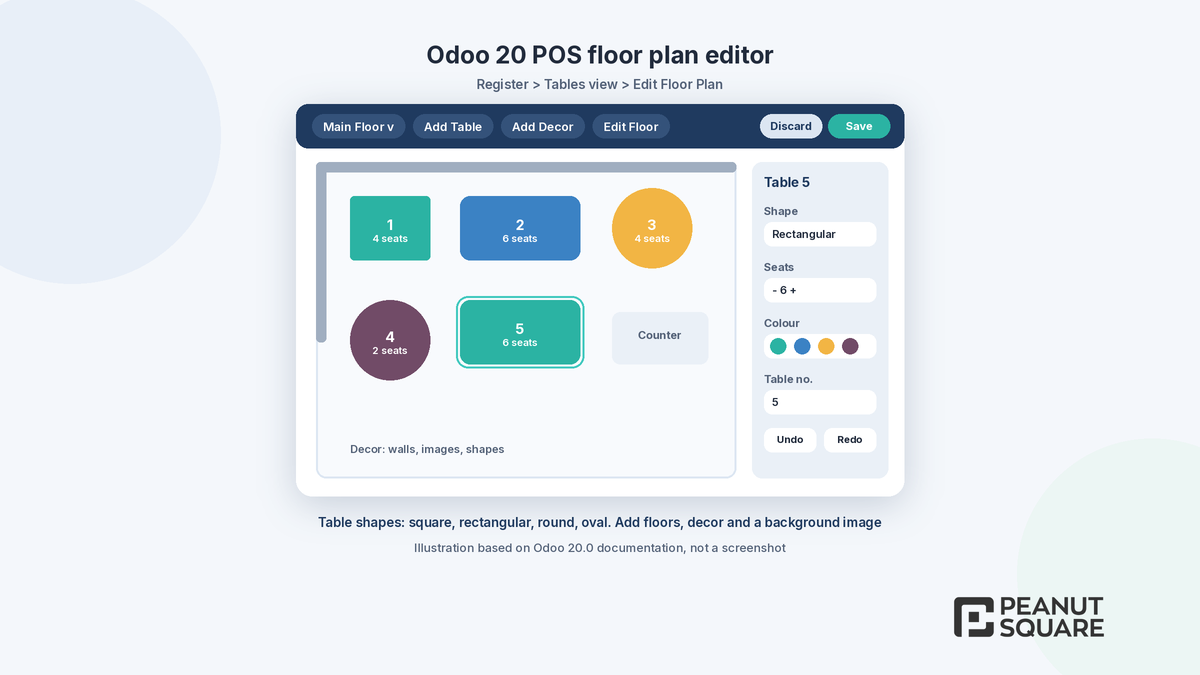
Odoo describes the floor plan editor as redesigned in Odoo 20. According to the 20.0 restaurant documentation, you open the POS register, go to the Tables view and click the Edit Floor Plan icon. From there you can:
Add tables in four shapes: square, rectangular, round and oval, and set properties such as the number of seats and the table number.
Add decor such as walls, images and shapes, so the screen looks like your real dining room.
Rename a floor, choose a background or upload your own background image.
Undo or redo your last change.
One caution from the documentation: removing a table, decor or a whole floor plan is permanent. Set up floors on a test database first, and agree table numbers with your service team before go-live so that kitchen tickets and bills match what staff call each table.
Automatic combos
Combos let you sell a set menu, such as a main, a side and a drink, at a combo price. The Odoo 20.0 products documentation explains that when all the products of a predefined combo are added to an order one by one, Odoo detects the combo and shows a suggestion above the keypad; click Apply to use the combo pricing, or Choose if several combos match. If a guest changes their mind, Break Combo splits it back into individual products at their standard sales prices.
In an Odoo restaurant POS, for a busy table where a server enters items as guests call them out, this saves re-entering the order as a combo. Combos still need to be set up first under Point of Sale ‣ Products ‣ Combo Choices, so plan your combo menus and prices before you rely on suggestions.
How do you snooze unavailable items in Odoo 20 POS?
When a dish or product runs out, staff can snooze it instead of archiving it. Per the 20.0 documentation, click Snooze on the product, select a duration and click Apply. The product becomes temporarily unavailable in the POS register and on the self-ordering menu. To bring it back early, long-click the product in the register, click the countdown timer and confirm Stop Snooze.
Odoo's announcement says snoozing updates both POS and online orders instantly. If you also take delivery orders through UrbanPiper, test how a snoozed item behaves on each connected platform before relying on it during a rush.
Customer notes to kitchen
In Odoo 20, customers who use self-ordering can leave a note at checkout, and the note is visible on the kitchen display. This matters for requests such as "less spicy" or "no onion", which often get lost between a kiosk and the kitchen.
The kitchen display itself is configured as a preparation display. The 20.0 documentation describes stages (for example To prepare, Ready and Completed), an alert timer per stage, colour coding, and order cards that show items, waiting time and added notes. If you print instead of using screens, the new "Split per
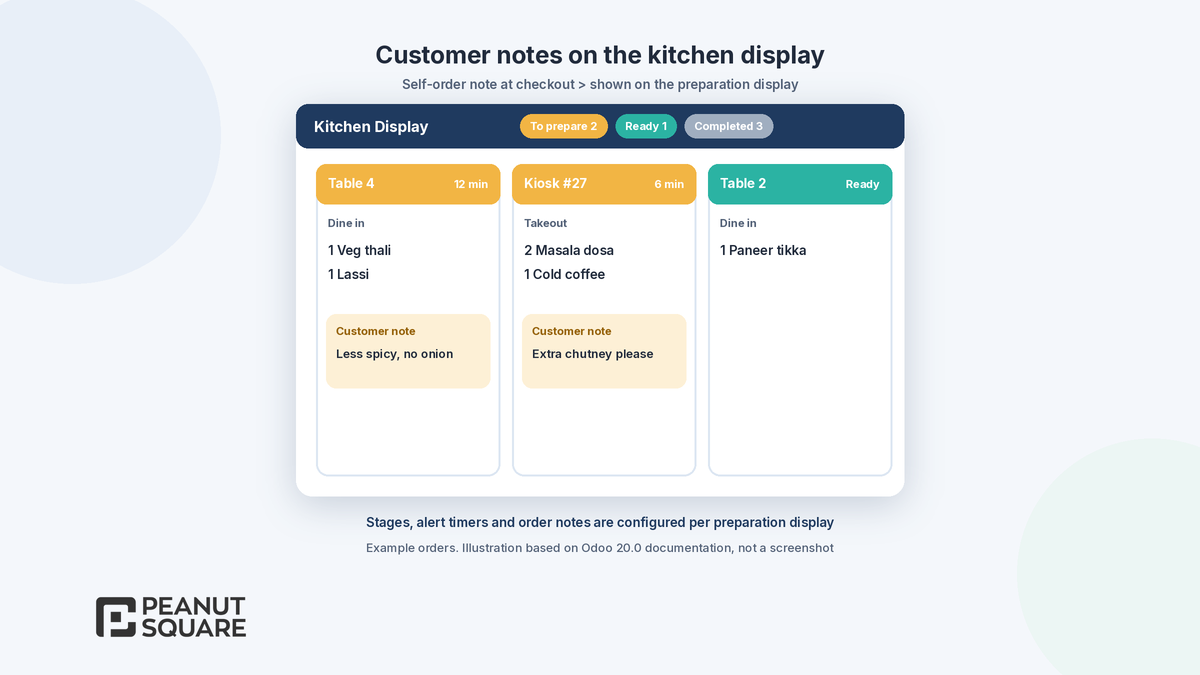
product" option and multi-printer setup help route tickets to the right station.
Retail considerations for Odoo 20 POS in India
For an Odoo retail POS in India, there are fewer headline features but several practical ones:
Stock without the Inventory app: Odoo 20 POS can run simplified inventory management, showing a single on-hand quantity per product with no required transfers. This suits small shops; stores with warehouses, lots or transfers should still plan for the Inventory app.
Expired product notifications: cashiers are notified when they select an expired product.
Labels: any label printer can now connect via USB proxy, and product labels can show the base unit price.
Payments: static UPI QR code payments are now supported, and one point of sale can accept multiple currencies at checkout.
Faster counters: drag-and-drop product ordering, order search by invoice or receipt number and simplified receipts that show subtotals and taxes without order lines.
Accounting: the end-of-session global sale and automatic payment journal entries at a set time should make daily closing simpler for accounts teams.
Restaurants in India that take Swiggy or Zomato orders should note that Odoo's UrbanPiper documentation requires an UrbanPiper subscription and an Odoo Enterprise subscription. In Odoo 20, most UrbanPiper settings can be managed from inside the Point of Sale app. For GST invoices, e-invoicing and HSN codes, read our Odoo 20 India localization guide, and for stock beyond the simplified mode, see Odoo 20 Inventory.
How should you plan an Odoo 20 POS rollout?
List the Odoo 20 POS features you actually need: floors, combos, self-ordering, kitchen display, UPI QR or delivery platforms.
Set up products, combos, taxes and payment methods on a test database.
Build the floor plan and preparation displays with your floor and kitchen staff.
Run a dummy service: place, snooze, combine, split and pay orders, then close the session and check the accounting entries.
Train staff on the new access levels before go-live.
For the wider picture of the release, see Odoo 20 new features, and if you are deciding when to upgrade, read Odoo 19 vs Odoo 20.
How Peanut Square can help
Peanut Square is an Odoo Learning Partner based in Ahmedabad, Gujarat, founded in 2017. We have developed 90 Odoo modules and delivered 100+ projects, and our team includes an Odoo-certified consultant. Our Odoo clients include Renite Vitrified, Woodleaf and Madhav Solar. Through our Odoo implementation service and wider Odoo ERP work, we can help you map your counters, menus and payment methods to Odoo POS, set up a test database and plan training before you go live.
Planning a point of sale on Odoo? Talk to us: https://www.peanutsquare.com/en/contact
About the author: Nishant Patel, CTO, Peanut Square
Nishant leads technology at Peanut Square, an Odoo Learning Partner founded in 2017 and based in Ahmedabad, Gujarat. The team has developed 90 Odoo modules, delivered 100+ projects and includes an Odoo-certified consultant.
Sources
Odoo 20 release notes (Point of Sale): https://www.odoo.com/odoo-20-release-notes
Odoo blog, Meet Odoo 20: https://www.odoo.com/blog/odoo-news-5/meet-odoo-20-2439
Odoo 20.0 documentation, Restaurant features: https://www.odoo.com/documentation/20.0/applications/sales/point_of_sale/restaurant.html
Odoo 20.0 documentation, POS products (snooze and combos): https://www.odoo.com/documentation/20.0/applications/sales/point_of_sale/products.html
Odoo 20.0 documentation, Preparation display: https://www.odoo.com/documentation/20.0/applications/sales/point_of_sale/extra/preparation.html
Odoo 20.0 documentation, Self-ordering: https://www.odoo.com/documentation/20.0/applications/sales/point_of_sale/extra/self_order.html
Odoo 20.0 documentation, UrbanPiper: https://www.odoo.com/documentation/20.0/applications/sales/point_of_sale/restaurant/urban_piper.html
What's new in Odoo 20 Point of Sale?
Odoo 20 POS adds a redesigned floor plan editor, suggestions to convert order lines into combos, snoozing of unavailable products on the POS and self-ordering menu, and self-ordering notes shown on the kitchen display. The release notes also list static UPI QR code payments, multiple currencies at checkout, simplified inventory without the Inventory app, expired product notifications, split preparation tickets per product and a new Supervised employee access level.
How do I snooze a product in Odoo 20 POS?
According to the Odoo 20.0 documentation, click Snooze on the product, select a duration and click Apply. The product becomes temporarily unavailable in the POS register and on the self-ordering menu. To bring it back early, long-click the product in the register, click the countdown timer and confirm Stop Snooze.
How do combos work in Odoo 20 POS?
You first define combos and combo choices. When all the products of a combo are added to an order individually, Odoo detects the combo and shows a suggestion above the keypad; click Apply to use the combo price. Break Combo splits it back into individual products at their standard sales prices.
Can Odoo 20 POS work without the Inventory app?
Yes. The Odoo 20 release notes say Point of Sale can now use simplified inventory management without installing the Inventory app. It shows a single on-hand quantity per product and needs no transfers. Stores that need warehouses, lots or transfers should still plan for the Inventory app.
Does Odoo 20 POS support UPI and Swiggy or Zomato orders?
The Odoo 20 release notes say payment via static UPI QR codes is now supported. Swiggy and Zomato orders are handled through the UrbanPiper integration, which Odoo's documentation says requires an UrbanPiper subscription and an Odoo Enterprise subscription. In Odoo 20, most UrbanPiper settings can be managed from inside the Point of Sale app.